> ## Documentation Index
> Fetch the complete documentation index at: https://docs.textmine.com/llms.txt
> Use this file to discover all available pages before exploring further.
# How to sign a document
> The steps to follow to sign a document in Legislate
This page was imported from Intercom and may describe older navigation or terminology. Source: [https://help.textmine.com/en/articles/9227639-how-to-sign-a-document](https://help.textmine.com/en/articles/9227639-how-to-sign-a-document)
This article will explain how to sign a document in Legislate.
## When can you sign a document?
Documents can be signed once the terms have been set and parties on both sides have been added. The checklist tab will have a red tick next to the **Review and Sign** when the document is ready to be signed.
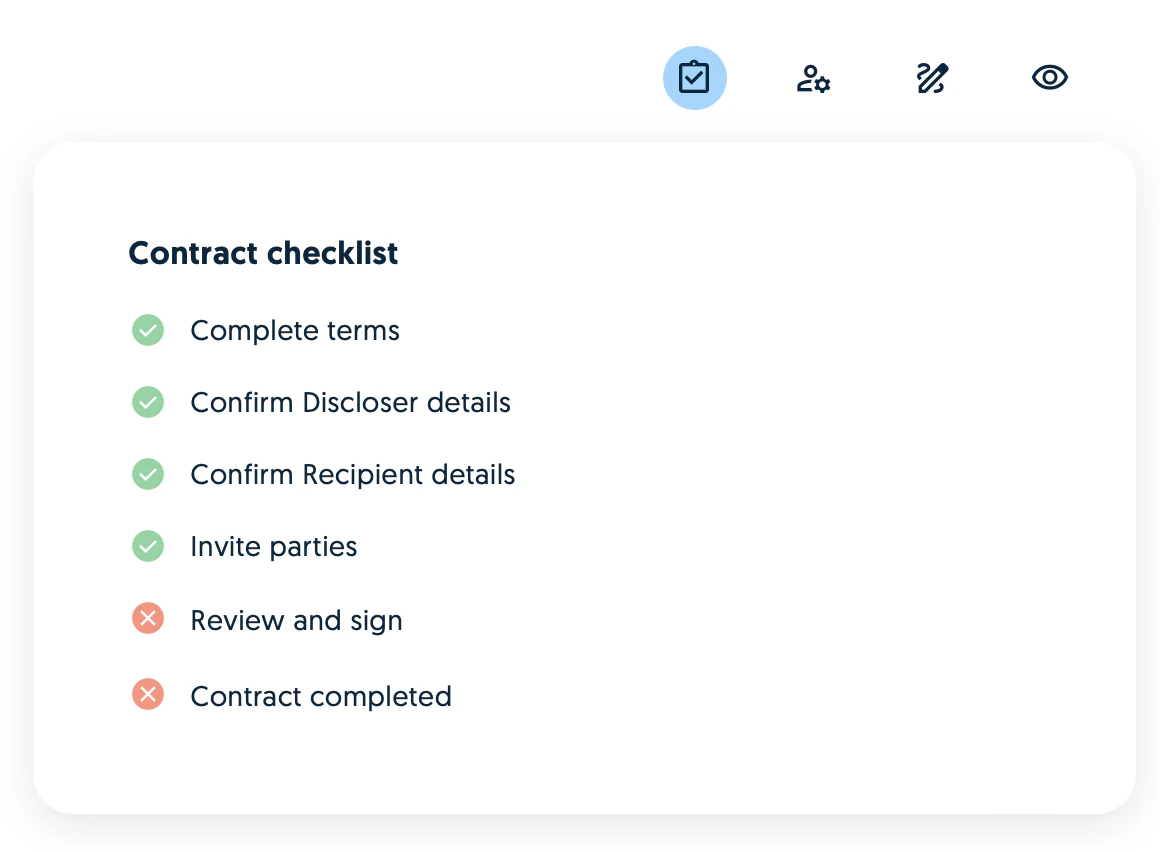 You can either click on the **Review and Sign** button in the checklist or click on the **Sign** icon.
## Signing a document
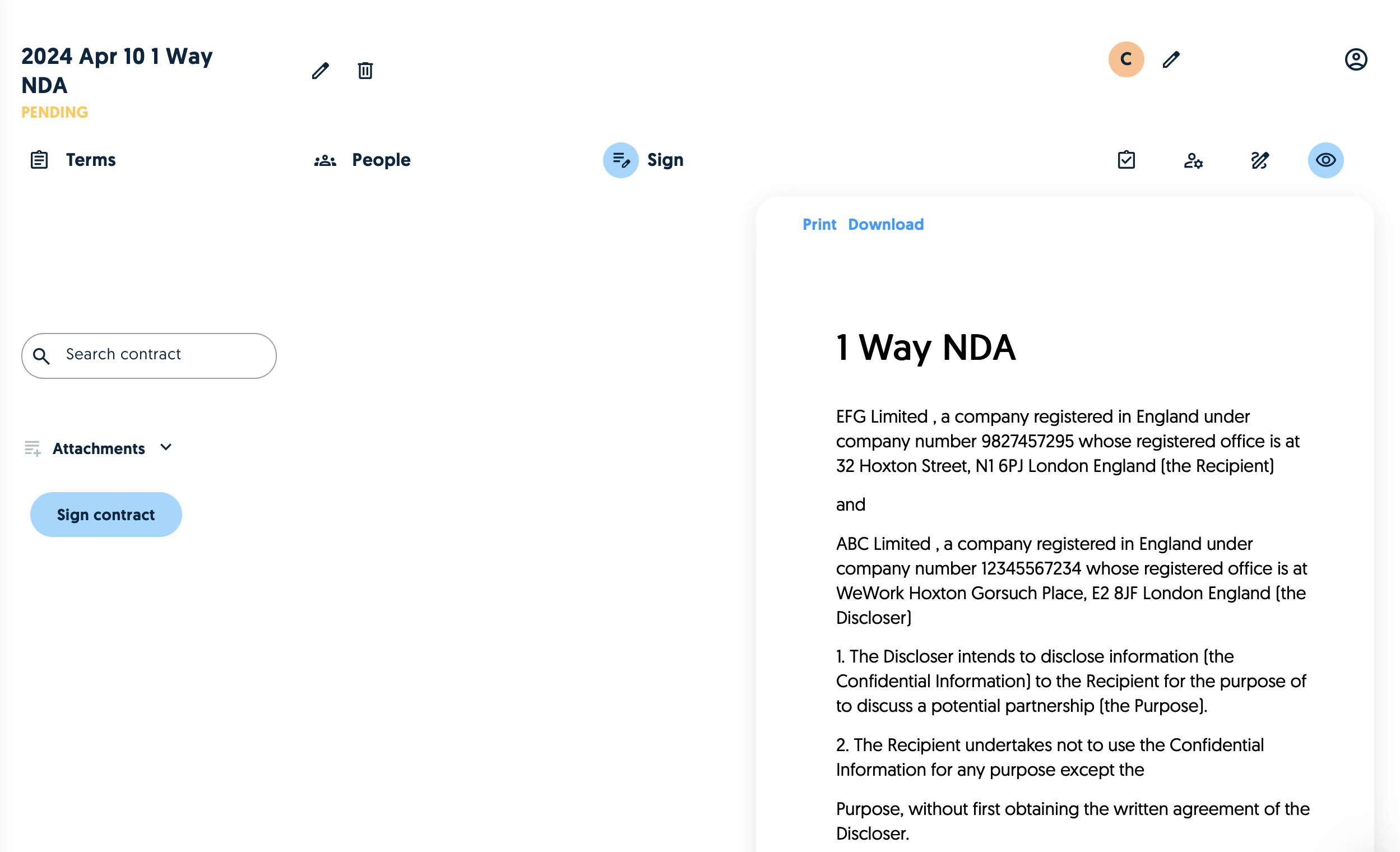
To sign a document, click on the **Sign contract** button.
You can either click on the **Review and Sign** button in the checklist or click on the **Sign** icon.
## Signing a document
To sign a document, click on the **Sign contract** button.
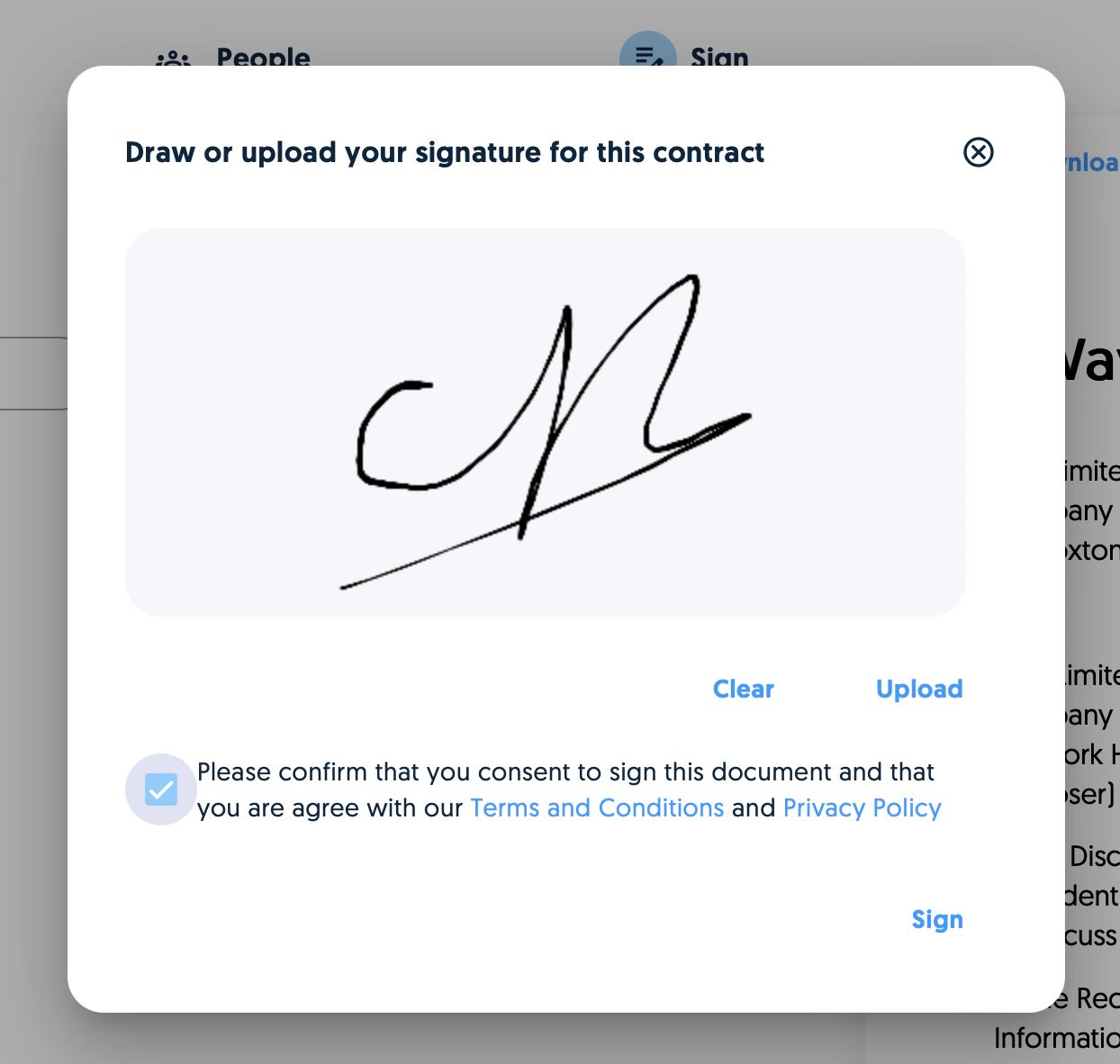
 You will then have the option to draw a signature or upload one.
 ## Keeping track of signatures
Signatures are tracked on the signature tab.
## Keeping track of signatures
Signatures are tracked on the signature tab.
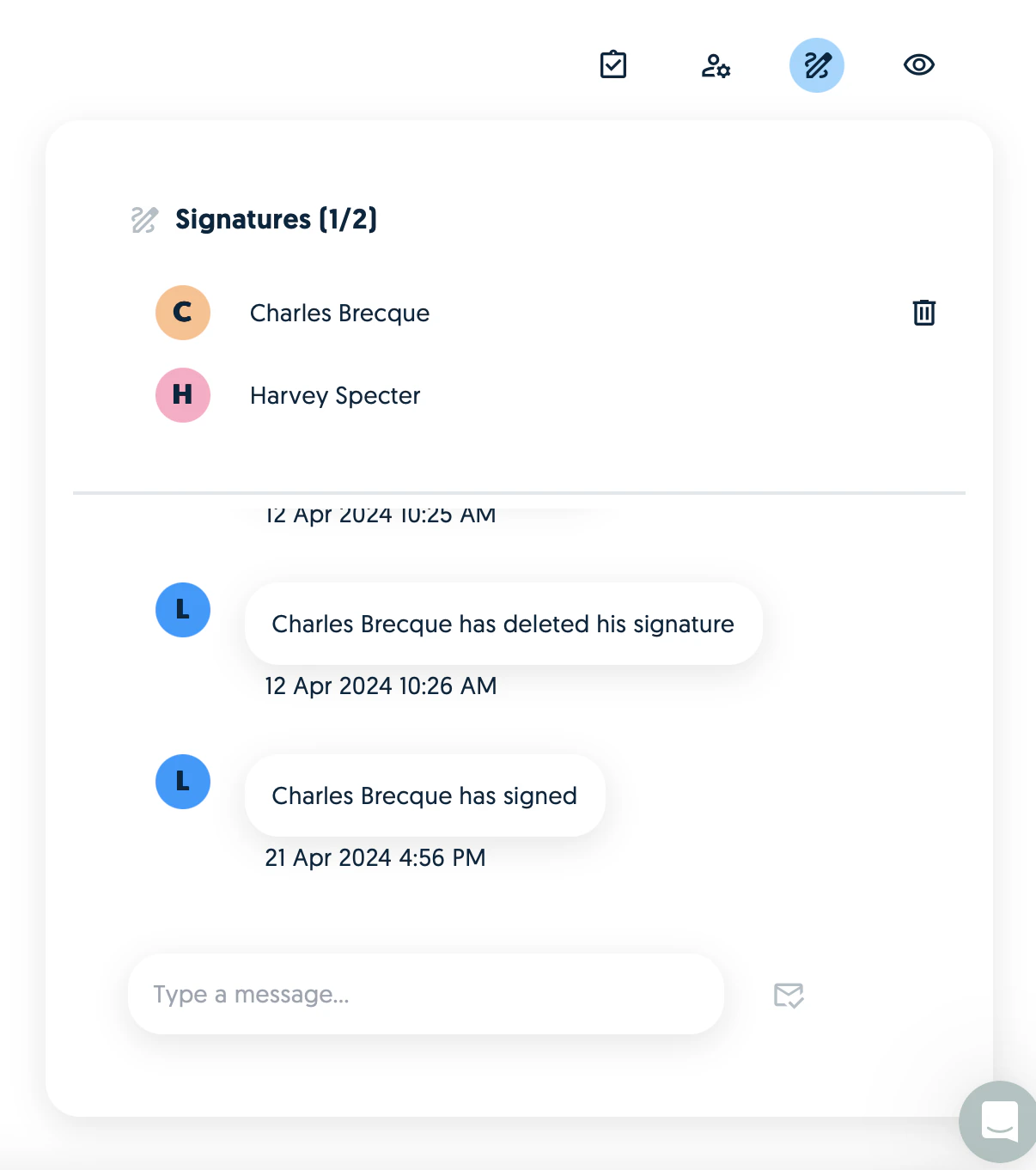 You can cancel a signature if the other side has not signed by clicking on the bin next to the user who has signed. The counter party will receive a notification when you sign.