> ## Documentation Index
> Fetch the complete documentation index at: https://docs.textmine.com/llms.txt
> Use this file to discover all available pages before exploring further.
# How to change a document type in Vault
> Correct a document type when it has been misclassified
This page was imported from Intercom and may describe older navigation or terminology. Source: [https://help.textmine.com/en/articles/9227362-how-to-change-a-document-type-in-vault](https://help.textmine.com/en/articles/9227362-how-to-change-a-document-type-in-vault)
Vault will use AI to automatically classify a document type based on its substance. You can correct the document type if Vault has made a mistake or not detected the document type.
You can either do this edit from the Vault home screen by clicking on the document type. A list of all the available document types will appear.
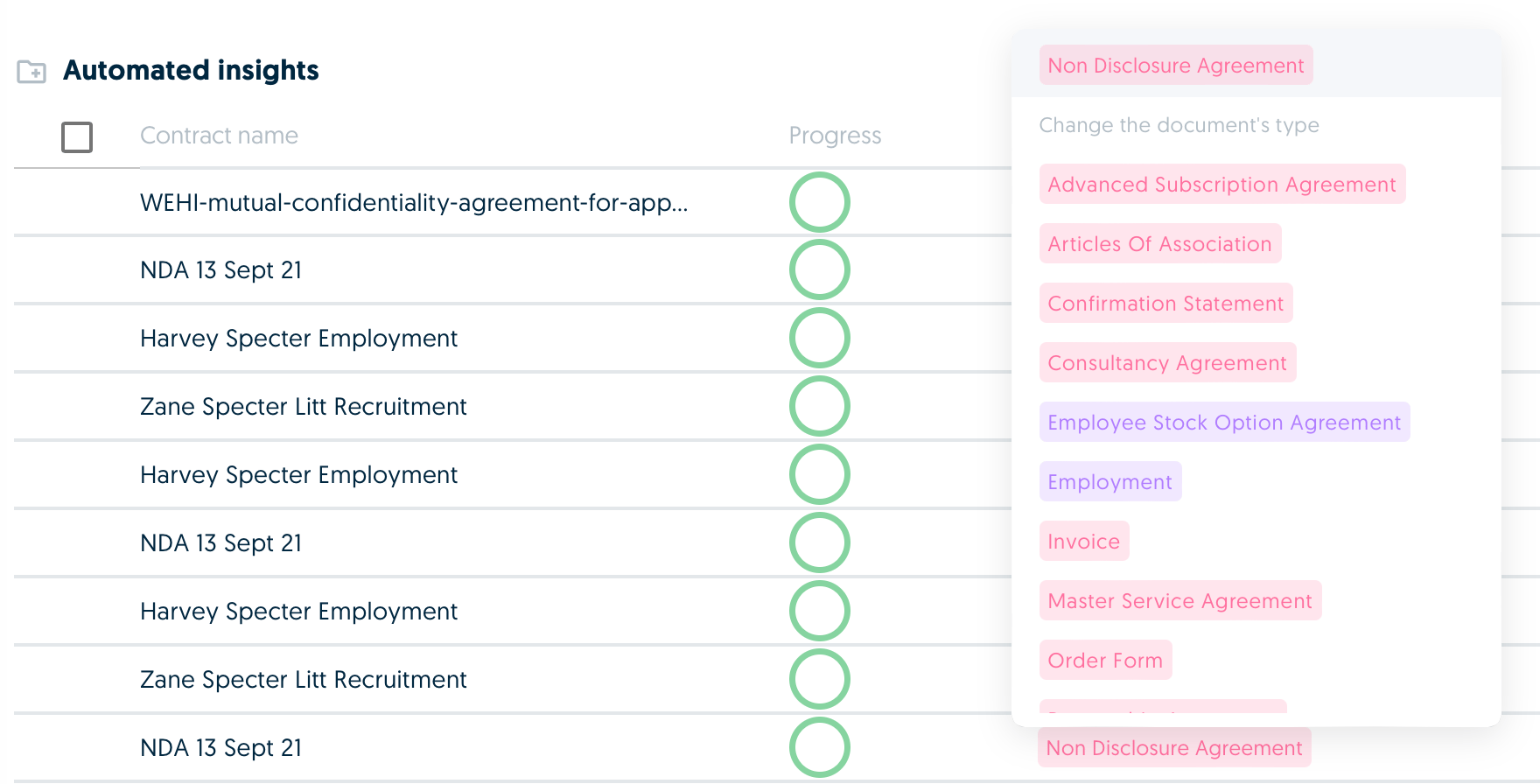 The document will then be re-submitted to the model for data extraction after you select the new type.
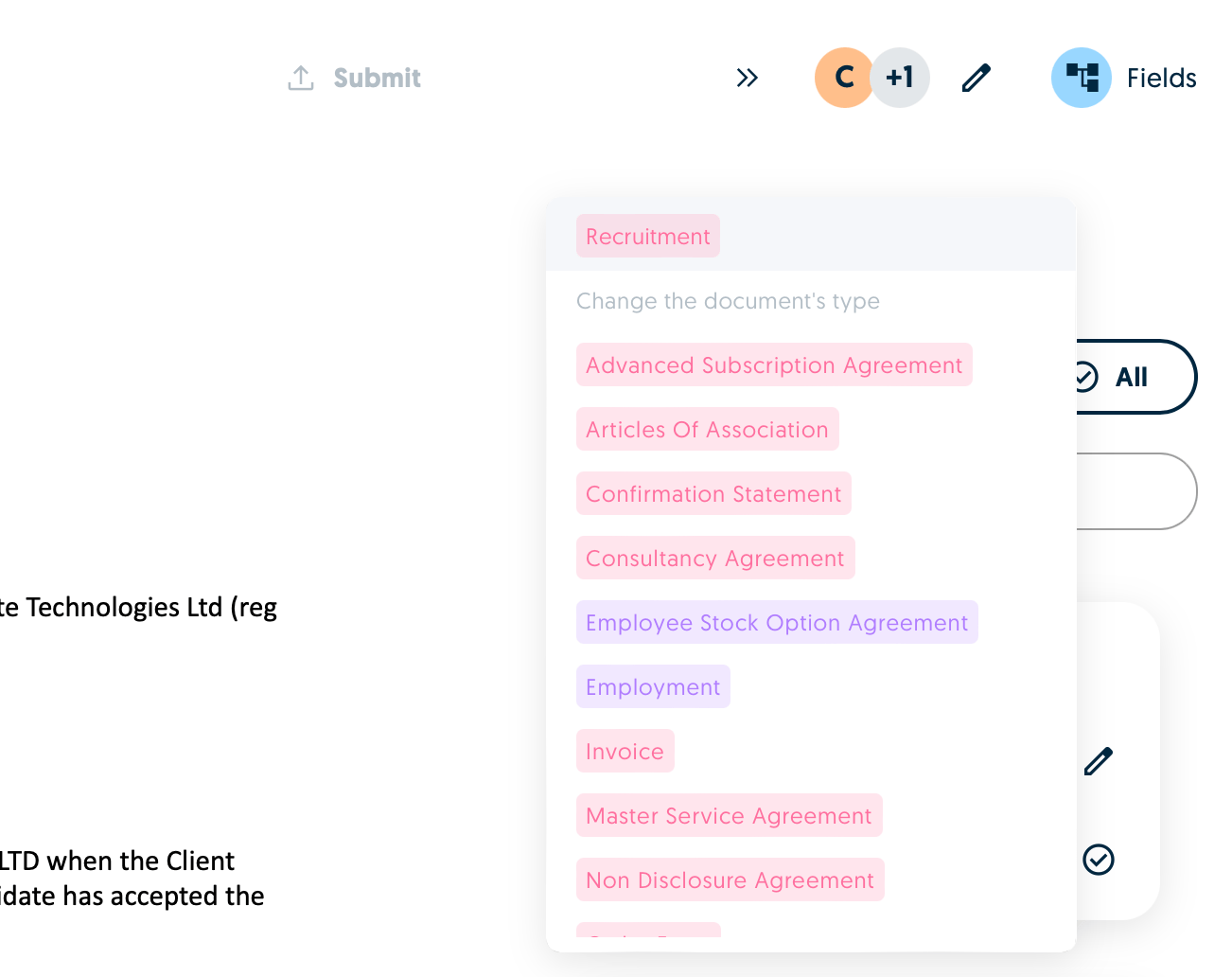
You can also change a document type within the Vault editor view by clicking on the document type in the top right hand corner.
The document will then be re-submitted to the model for data extraction after you select the new type.
You can also change a document type within the Vault editor view by clicking on the document type in the top right hand corner.