> ## Documentation Index
> Fetch the complete documentation index at: https://docs.textmine.com/llms.txt
> Use this file to discover all available pages before exploring further.
# Set up TextMine in Copilot Studio
> Connect a Microsoft Copilot Studio agent to TextMine from Azure Marketplace with the central TextMine MCP.
Use this guide when a Microsoft Copilot Studio agent should search TextMine Vaults, ask questions over documents, inspect business records, or create and follow task-agent work.
TextMine is available to Copilot Studio through Azure Marketplace as **TextMine MCP**. The marketplace listing connects Copilot Studio to the central hosted TextMine MCP server. The MCP server is backed by Public API V3, so the agent acts with the same TextMine permissions as the OAuth user or API key used for the connection.
Add TextMine from Copilot Studio as a Model Context Protocol tool. The current setup path is Azure Marketplace, Copilot Studio, and TextMine MCP; separate Power Apps setup is not needed.
Customer-managed Copilot Studio setup can use an API-key connection with `X-TextMine-Api-Key`. OAuth-based Microsoft marketplace flows use the same central MCP URL so TextMine can resolve the user, organization, and environment server-side.
## Which setup path should I use?
| Situation | Use this path |
| --------------------------------------------------------------------------------------------------------- | ----------------------------------------------------------------------------------------------------------------------------------------------------------------------- |
| The agent's **Tools** page shows **New tool** > **Model Context Protocol** and **TextMine MCP** is listed | Select **TextMine MCP** and create or authorize the connection in Copilot Studio. |
| A TextMine MCP connection already exists in the same Copilot Studio environment | Add the existing TextMine MCP tool to the agent. |
| **TextMine MCP** is not listed | Confirm the selected environment can use Azure Marketplace and MCP tools, then ask your Microsoft administrator or TextMine support to make **TextMine MCP** available. |
| Copilot Studio asks for a server URL | Use the central TextMine MCP endpoint: `https://mcp.textmine.com/mcp`. |
Think of Copilot Studio as the place where the agent gets TextMine as a tool. The TextMine MCP Azure Marketplace listing handles the Copilot Studio connection path.
For general Microsoft setup details, see Microsoft's guides for [connecting an existing MCP server to a Copilot Studio agent](https://learn.microsoft.com/en-us/microsoft-copilot-studio/mcp-add-existing-server-to-agent) and [adding MCP tools to an agent](https://learn.microsoft.com/en-us/microsoft-copilot-studio/mcp-add-components-to-agent).
## Before you start
You need:
* Access to Microsoft Copilot Studio and the environment where the agent lives.
* Permission to add Azure Marketplace and MCP tools to the agent.
* Access to the **TextMine MCP** Azure Marketplace listing in that environment.
* A TextMine OAuth connection or a TextMine API key for the TextMine organization the agent should use, depending on the connection flow. TextMine API keys use the `tm_...` format.
* Confirmation that any required TextMine features, Vaults, integrations, and task-agent email routes have been activated for that organization.
If Copilot Studio asks for a server URL, use the central TextMine MCP endpoint:
```text theme={null}
https://mcp.textmine.com/mcp
```
Do not use `https://developers.textmine.com/mcp`; that is the developer hub MCP endpoint for API reference discovery, not the TextMine product MCP server.
Store TextMine credentials only in the Copilot Studio connection or OAuth vault. Do not paste API keys, OAuth tokens, client secrets, or refresh tokens into agent instructions, prompts, chat transcripts, screenshots, app manifests, or documentation.
## Tutorial: create a new agent and add it to Teams
Use this path when you are starting from a blank Copilot Studio agent and want users to chat with TextMine from Microsoft Teams.
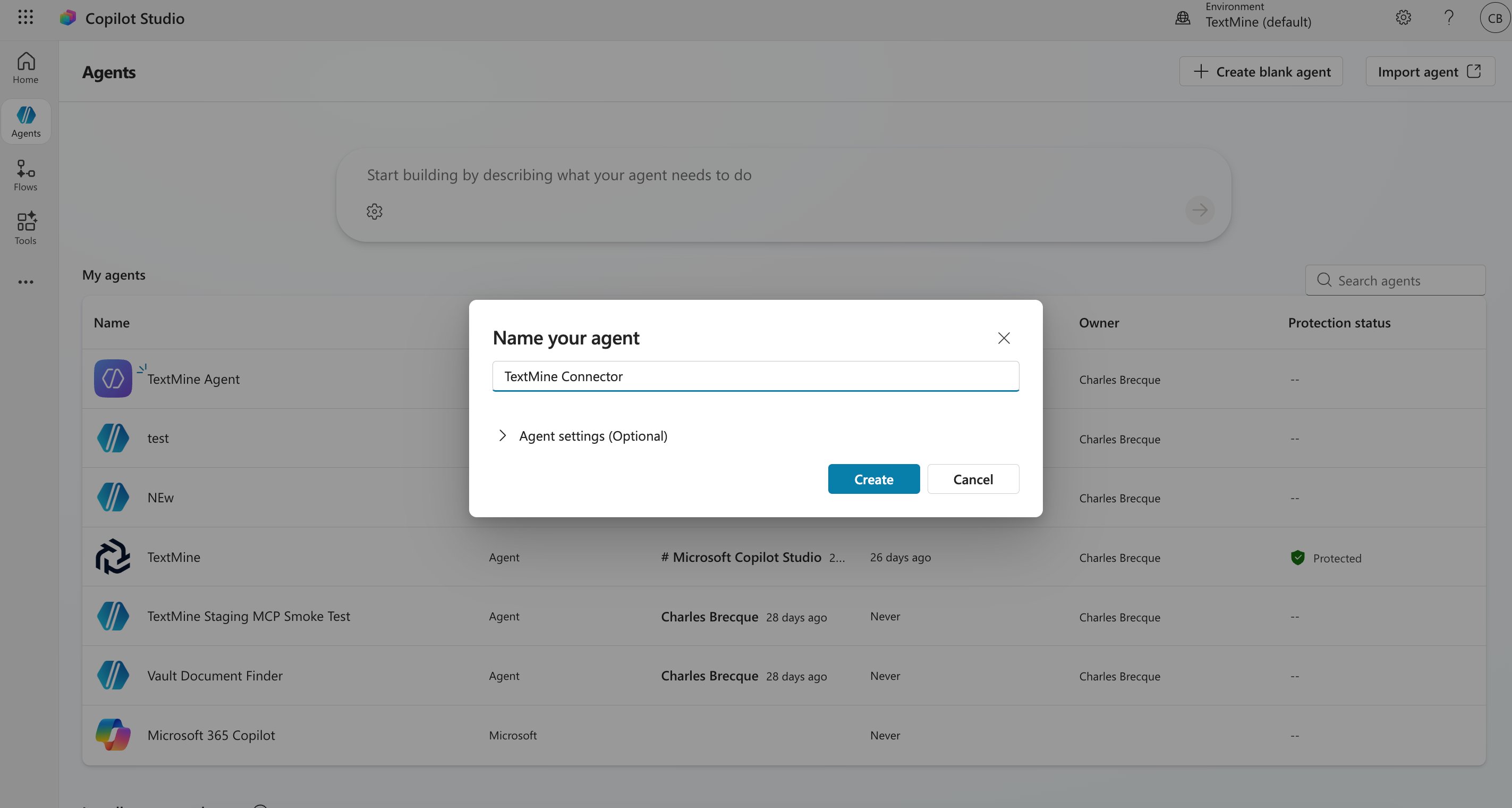
### Create the agent
1. Go to [Copilot Studio](https://copilotstudio.microsoft.com/).
2. Select the environment where the TextMine connection should live.
3. Create a new agent.
4. Give the agent a name and instructions that match the TextMine work it should support.
5. Save the agent.
 ### Add TextMine MCP as a tool
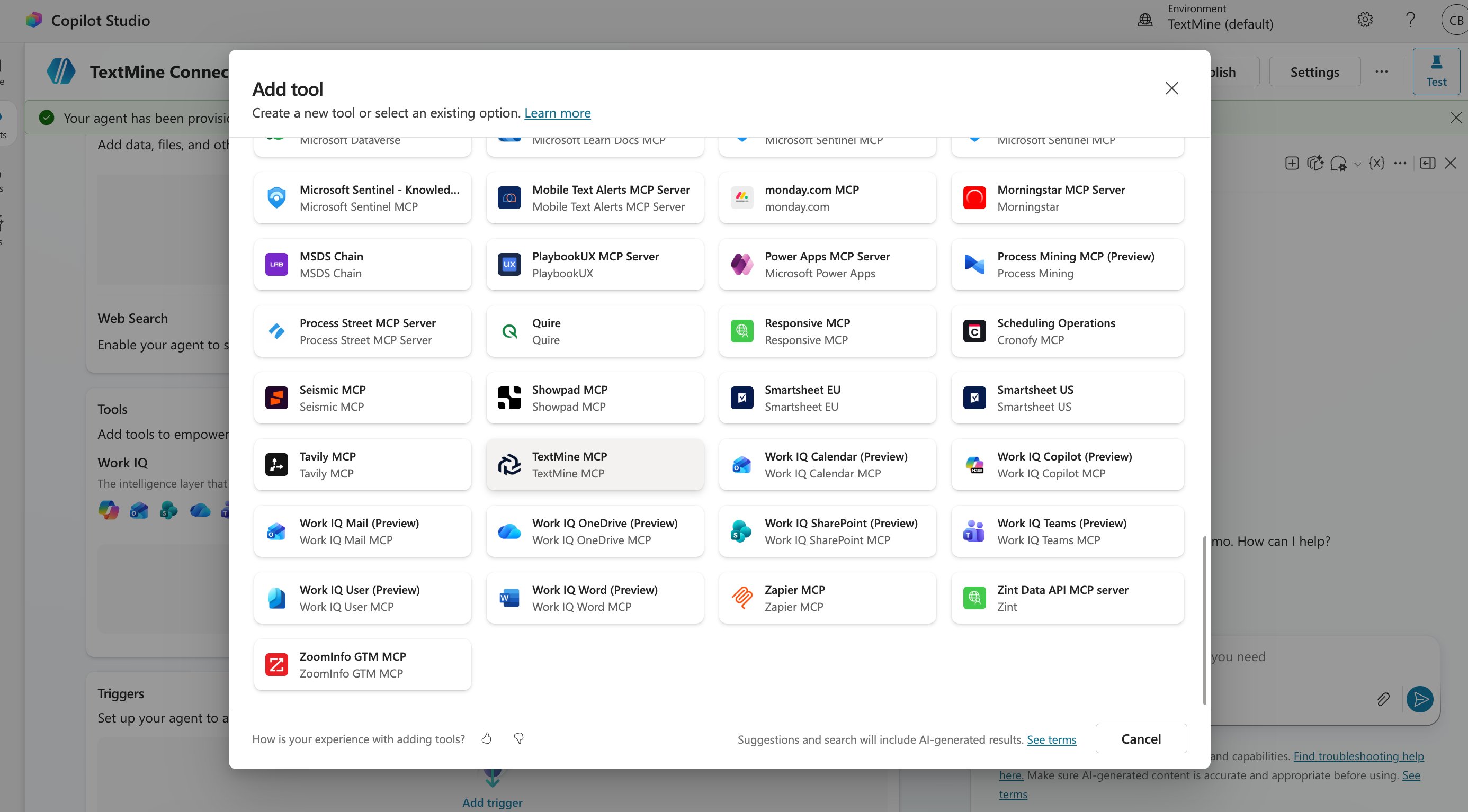
1. In the saved agent, select **Add a tool**.
2. Select **New tool** if Copilot Studio asks whether to create or reuse a tool.
3. Open the **Model Context Protocol** tab.
4. Select **TextMine MCP** from the list.
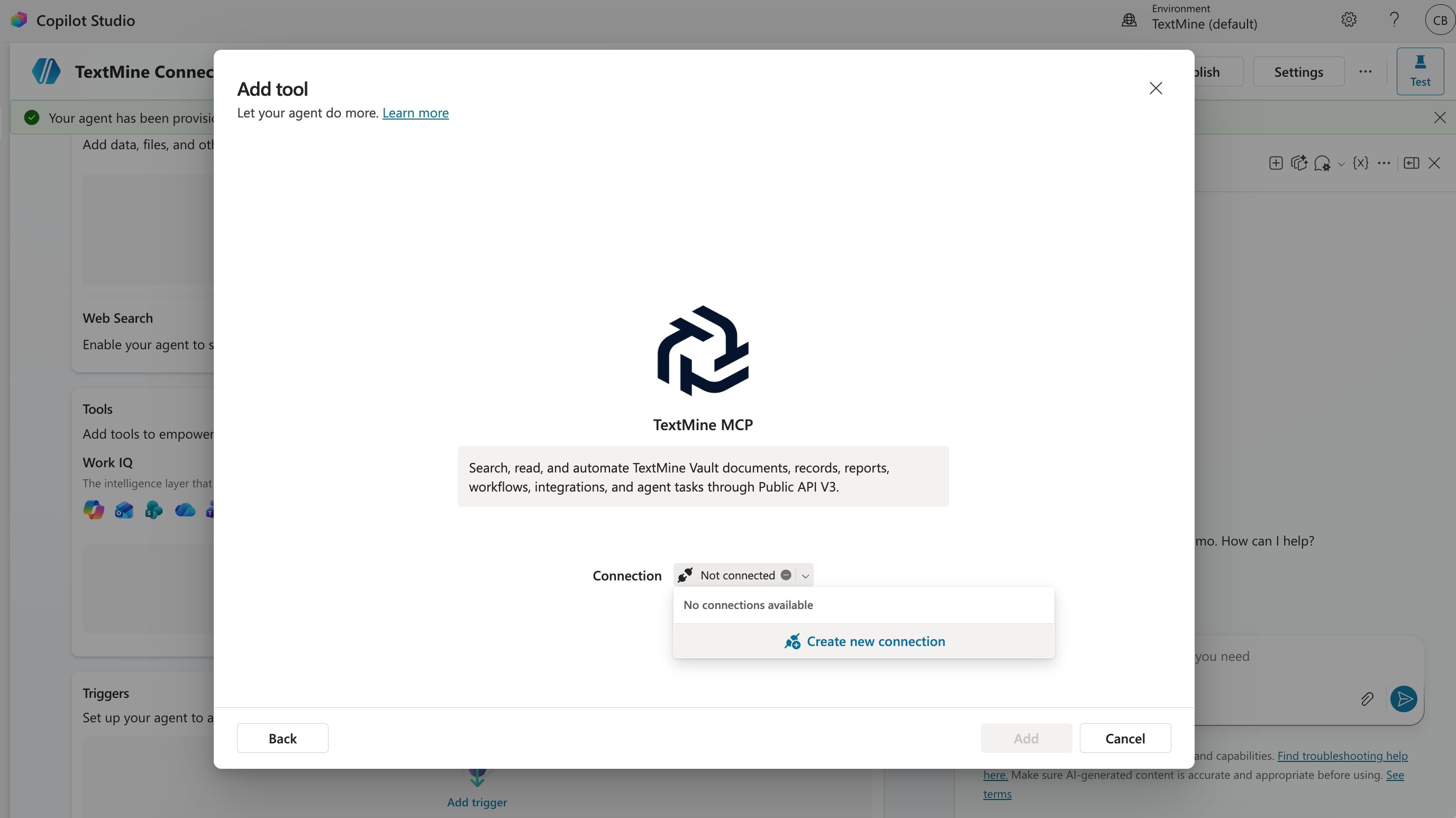
5. Select **Create connection** when Copilot Studio asks for a connection.
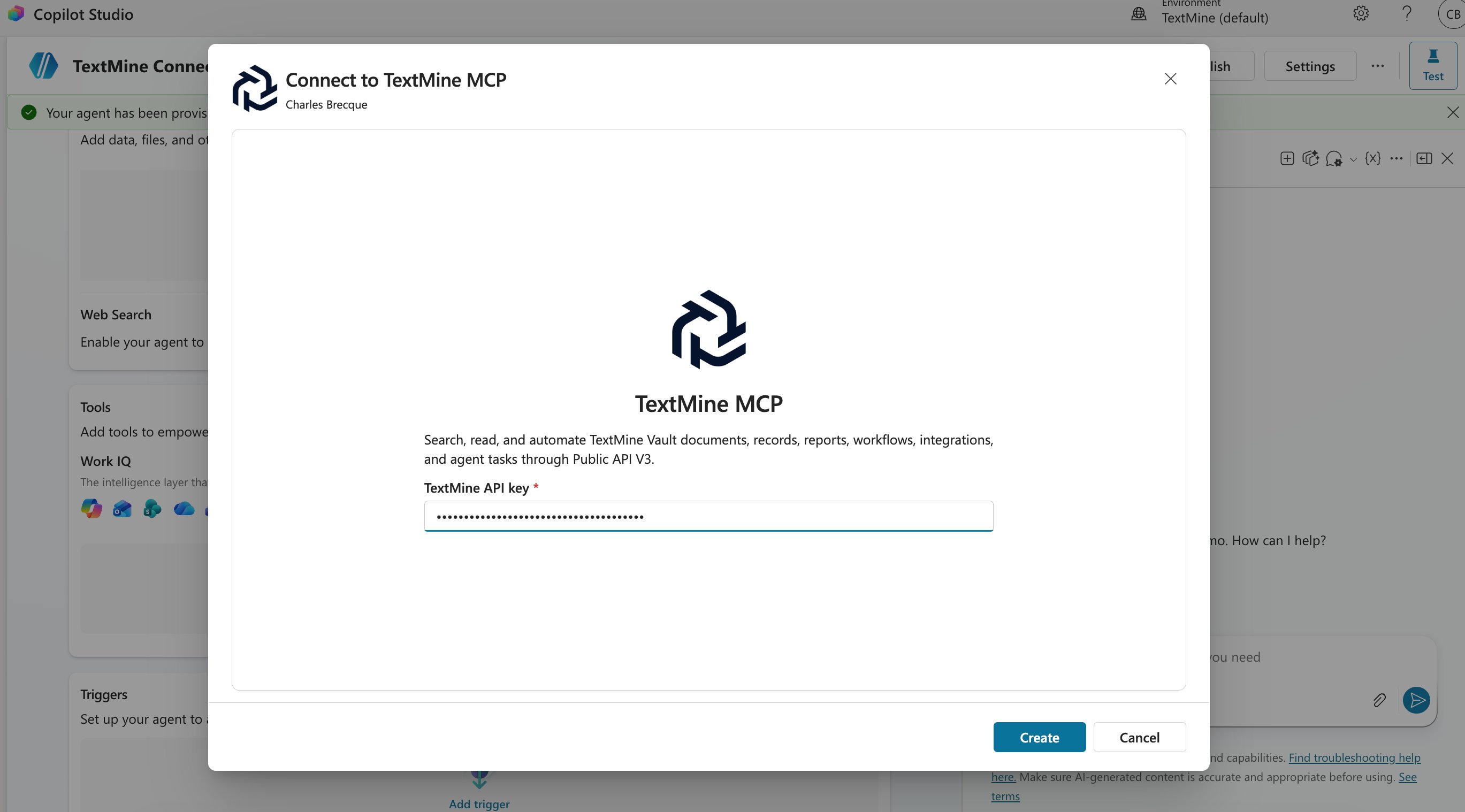
6. Complete the OAuth authorization flow, or paste the TextMine API key supplied by TextMine if Copilot Studio prompts for an API-key connection. TextMine API keys use the `tm_...` format.
7. Create or authorize the connection, then add the TextMine MCP tool to the agent.
8. Review the discovered tools and choose whether the agent can use all TextMine tools or only selected tools.
### Add TextMine MCP as a tool
1. In the saved agent, select **Add a tool**.
2. Select **New tool** if Copilot Studio asks whether to create or reuse a tool.
3. Open the **Model Context Protocol** tab.
4. Select **TextMine MCP** from the list.
5. Select **Create connection** when Copilot Studio asks for a connection.
6. Complete the OAuth authorization flow, or paste the TextMine API key supplied by TextMine if Copilot Studio prompts for an API-key connection. TextMine API keys use the `tm_...` format.
7. Create or authorize the connection, then add the TextMine MCP tool to the agent.
8. Review the discovered tools and choose whether the agent can use all TextMine tools or only selected tools.
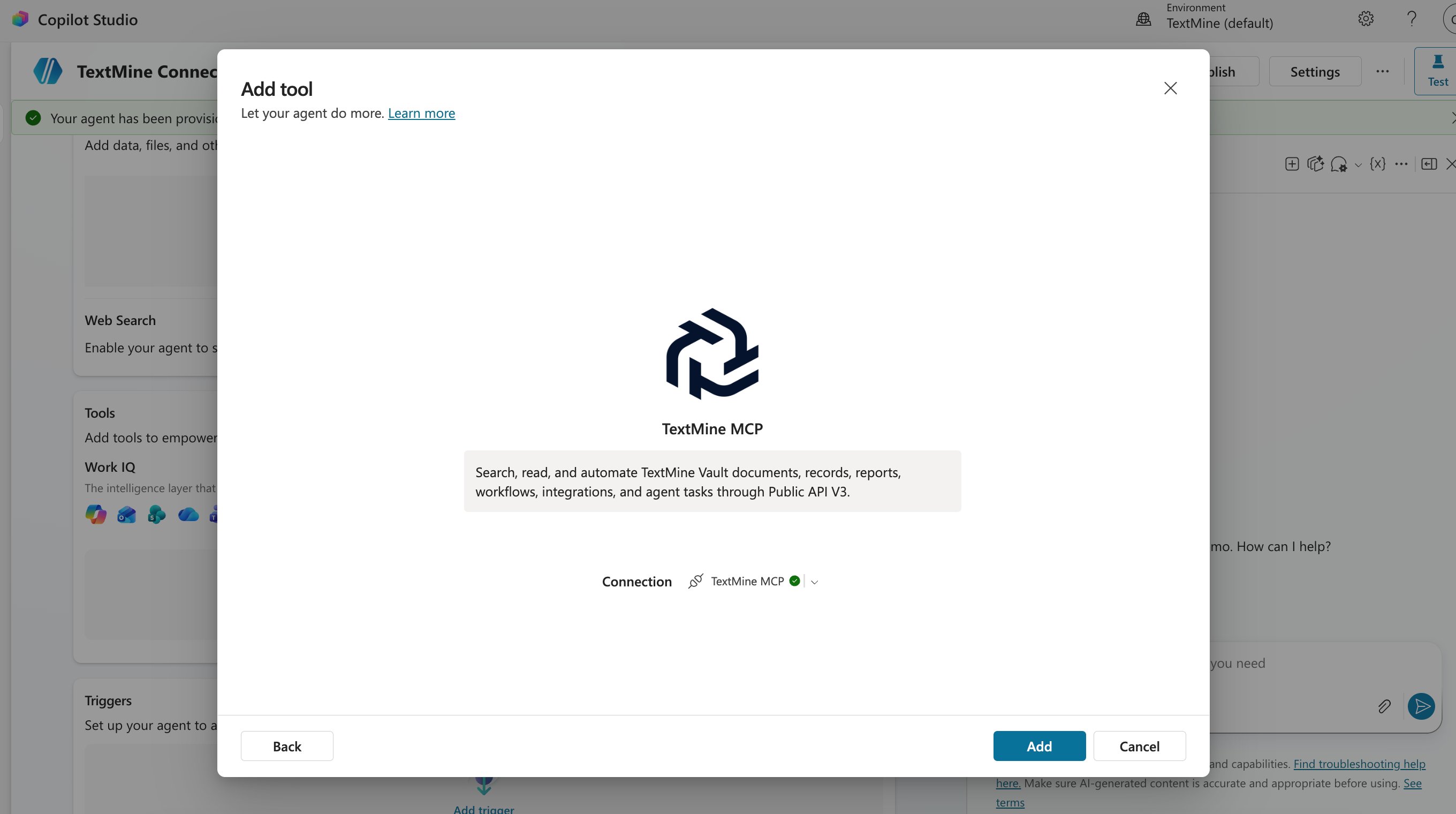 If **TextMine MCP** is not listed, follow [Recommended setup: Azure Marketplace TextMine MCP](#recommended-setup-azure-marketplace-textmine-mcp) to check the Copilot Studio setup path and marketplace availability.
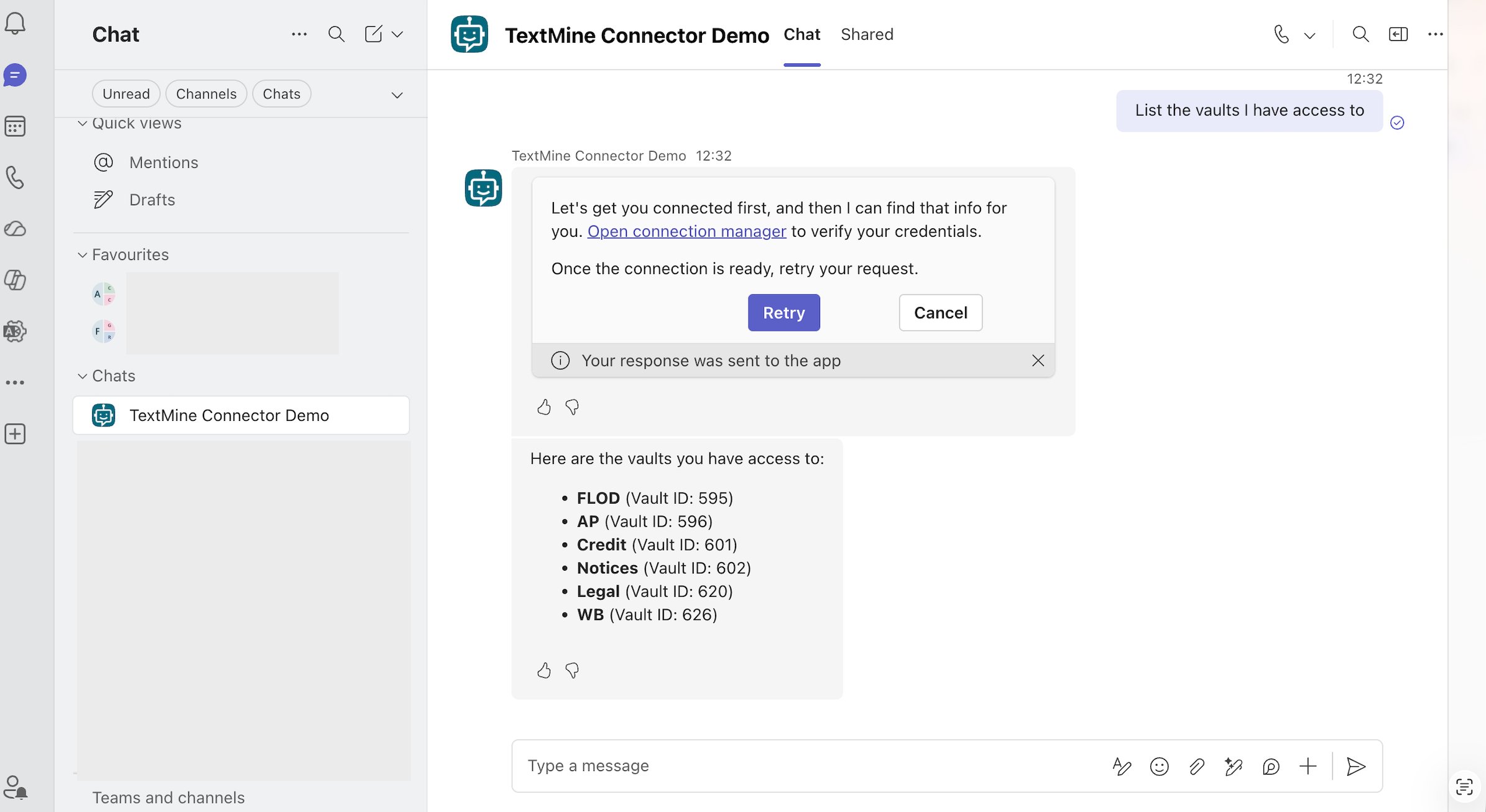
### Test the agent
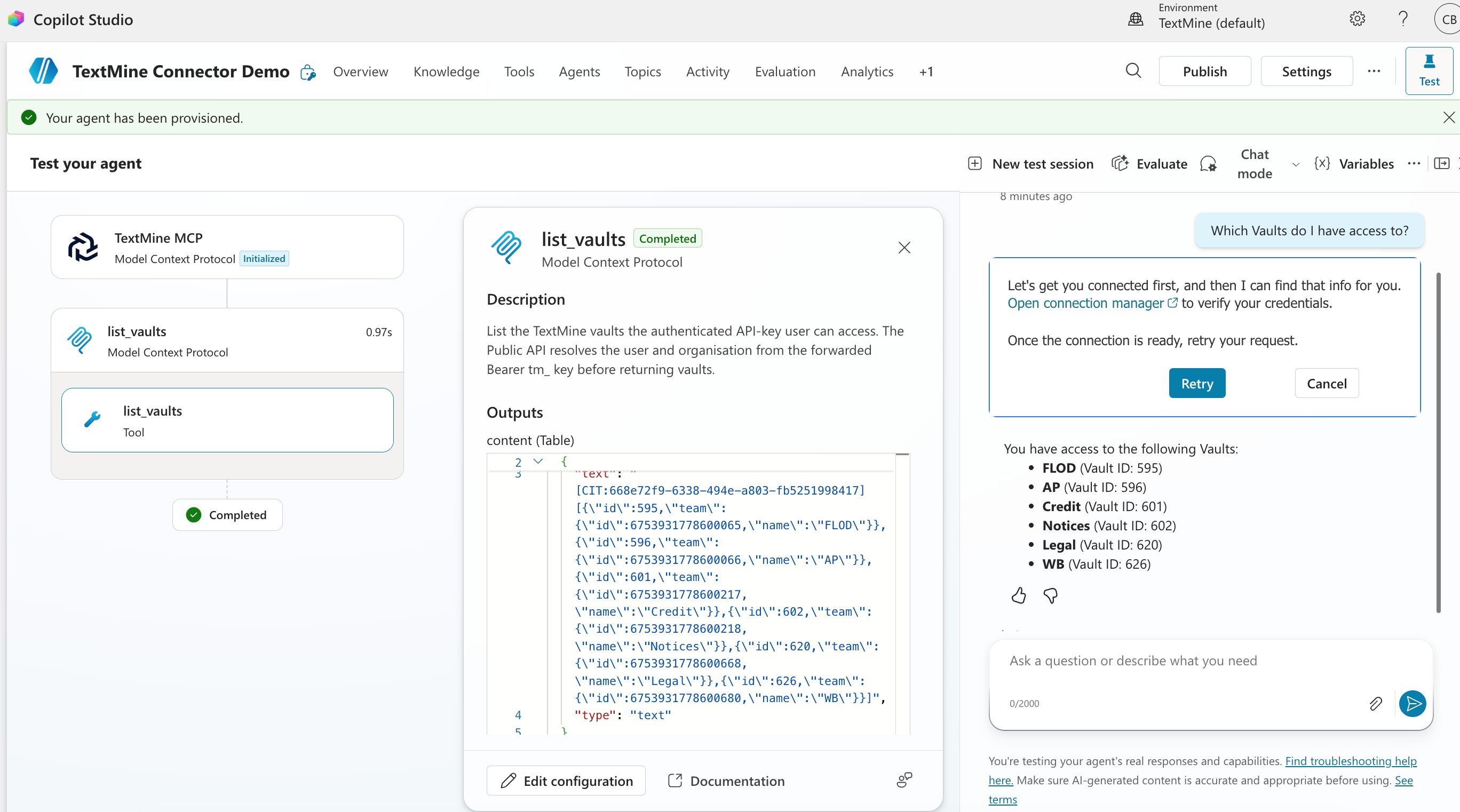
1. Open **Test your agent**.
2. Ask a low-risk TextMine question, such as listing the Vaults the connection can access.
3. Confirm that the answer only uses TextMine data available to the connected OAuth user or API key.
4. If Copilot Studio prompts you to reconnect, open the connection manager from the prompt, reconnect the TextMine MCP connection, then test again.
If **TextMine MCP** is not listed, follow [Recommended setup: Azure Marketplace TextMine MCP](#recommended-setup-azure-marketplace-textmine-mcp) to check the Copilot Studio setup path and marketplace availability.
### Test the agent
1. Open **Test your agent**.
2. Ask a low-risk TextMine question, such as listing the Vaults the connection can access.
3. Confirm that the answer only uses TextMine data available to the connected OAuth user or API key.
4. If Copilot Studio prompts you to reconnect, open the connection manager from the prompt, reconnect the TextMine MCP connection, then test again.
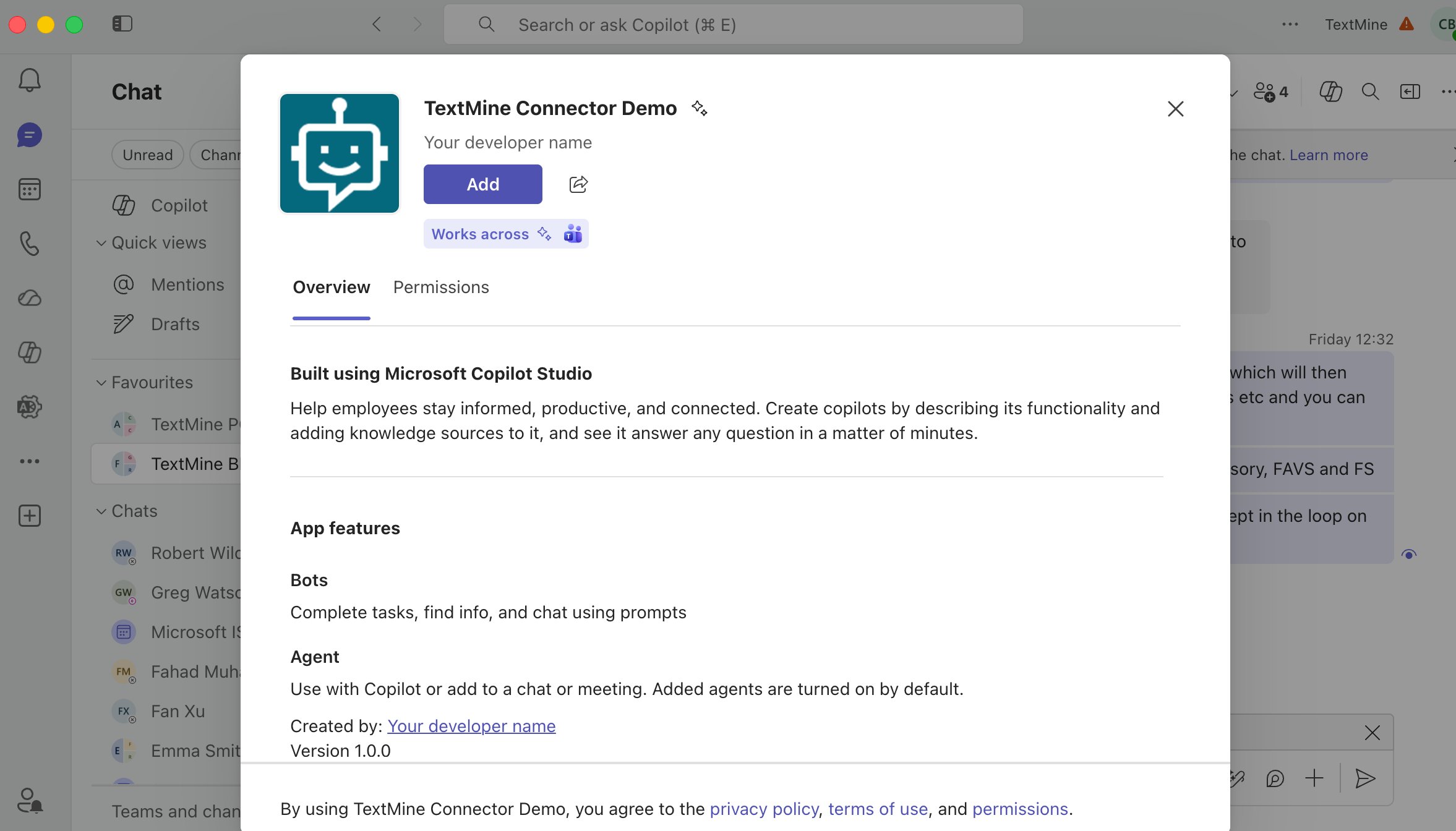
 ### Publish and add the Teams channel
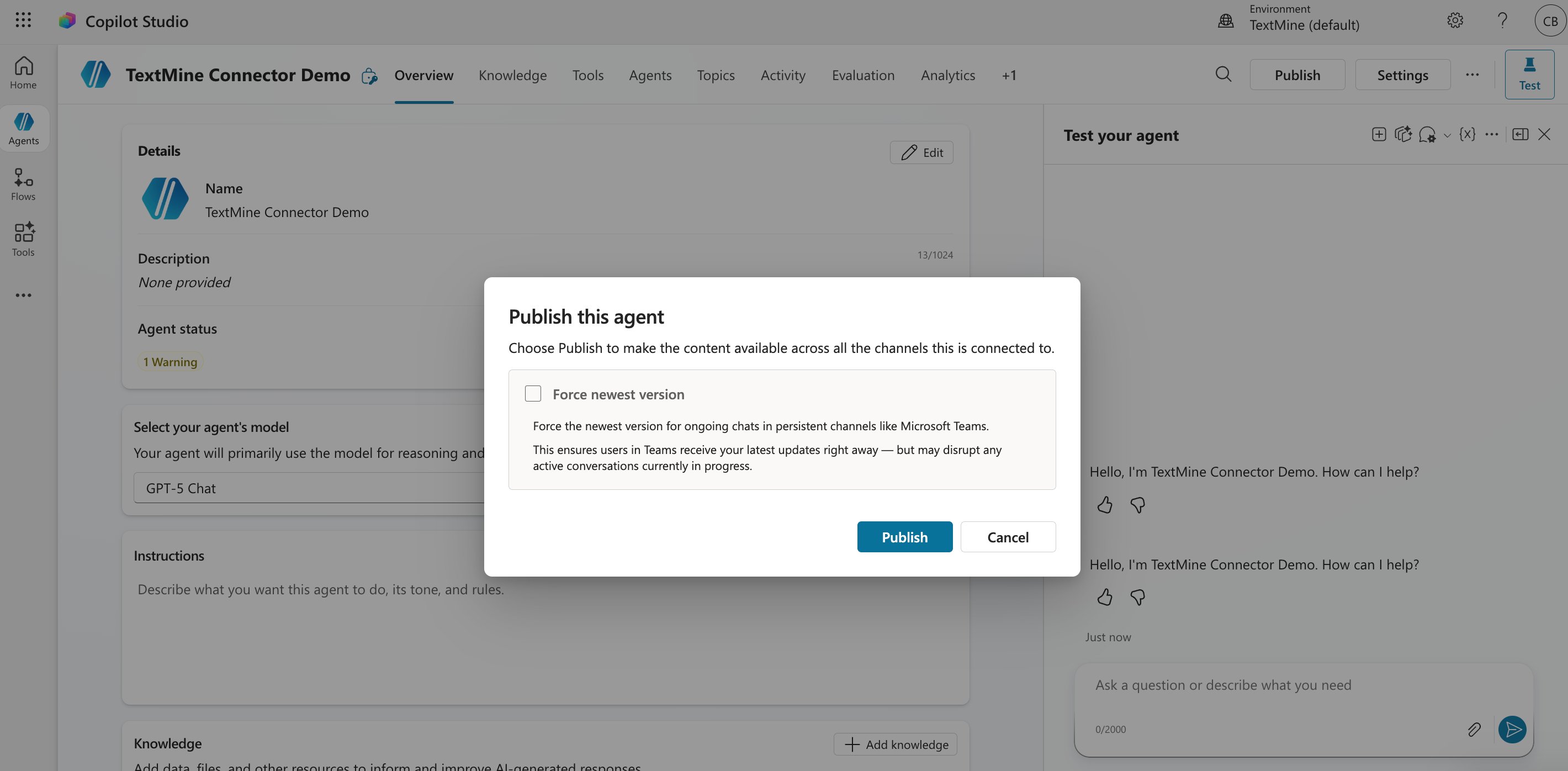
1. When the test answers look right, select **Publish**.
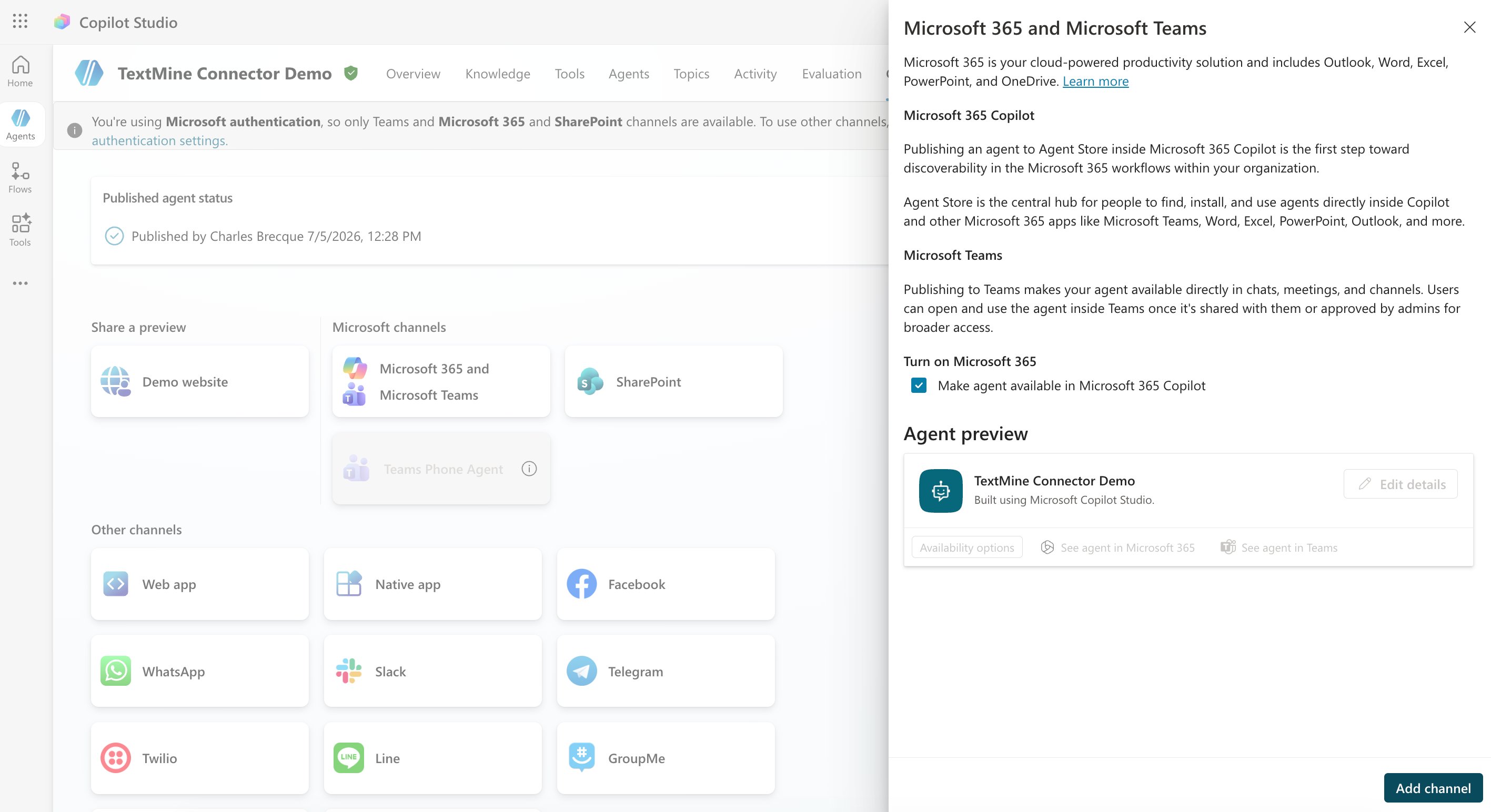
2. After publishing completes, open the **Channels** tab.
3. Add a channel.
4. Select **Microsoft Teams**.
5. Follow the Teams channel setup prompts to make the agent available in Teams.
6. If the connection manager prompts you to revalidate, revalidate the TextMine MCP connection before continuing.
7. Open the agent in Teams and ask a TextMine question to confirm the Teams experience works end to end.
### Publish and add the Teams channel
1. When the test answers look right, select **Publish**.
2. After publishing completes, open the **Channels** tab.
3. Add a channel.
4. Select **Microsoft Teams**.
5. Follow the Teams channel setup prompts to make the agent available in Teams.
6. If the connection manager prompts you to revalidate, revalidate the TextMine MCP connection before continuing.
7. Open the agent in Teams and ask a TextMine question to confirm the Teams experience works end to end.
 ## Troubleshooting
| Issue | Check |
| -------------------------------------------------- | ----------------------------------------------------------------------------------------------------------------------------------------------------------------------------------------------------------------------------- |
| **TextMine MCP** is not listed | Confirm the selected Copilot Studio environment can use Azure Marketplace and MCP tools. Ask your Microsoft administrator or TextMine support to make **TextMine MCP** available. |
| Copilot Studio asks you to reconnect or revalidate | Open the connection manager from the prompt, reconnect or revalidate the TextMine MCP connection, then test the agent again. |
| Authentication fails | Confirm the connection uses `https://mcp.textmine.com/mcp`. For OAuth setup, reauthorize the TextMine connection. For API-key setup, confirm Copilot Studio sends `X-TextMine-Api-Key` and stores the raw `tm_...` key value. |
| Vaults, documents, records, or tasks are missing | Confirm the connected OAuth user or TextMine API key has access to that data and that required TextMine features, integrations, Vaults, or task-agent email routes are activated for the organization. |
## Troubleshooting
| Issue | Check |
| -------------------------------------------------- | ----------------------------------------------------------------------------------------------------------------------------------------------------------------------------------------------------------------------------- |
| **TextMine MCP** is not listed | Confirm the selected Copilot Studio environment can use Azure Marketplace and MCP tools. Ask your Microsoft administrator or TextMine support to make **TextMine MCP** available. |
| Copilot Studio asks you to reconnect or revalidate | Open the connection manager from the prompt, reconnect or revalidate the TextMine MCP connection, then test the agent again. |
| Authentication fails | Confirm the connection uses `https://mcp.textmine.com/mcp`. For OAuth setup, reauthorize the TextMine connection. For API-key setup, confirm Copilot Studio sends `X-TextMine-Api-Key` and stores the raw `tm_...` key value. |
| Vaults, documents, records, or tasks are missing | Confirm the connected OAuth user or TextMine API key has access to that data and that required TextMine features, integrations, Vaults, or task-agent email routes are activated for the organization. |