This page was imported from Intercom and may describe older navigation or terminology. Source: https://help.textmine.com/en/articles/9227549-how-to-create-custom-alerts
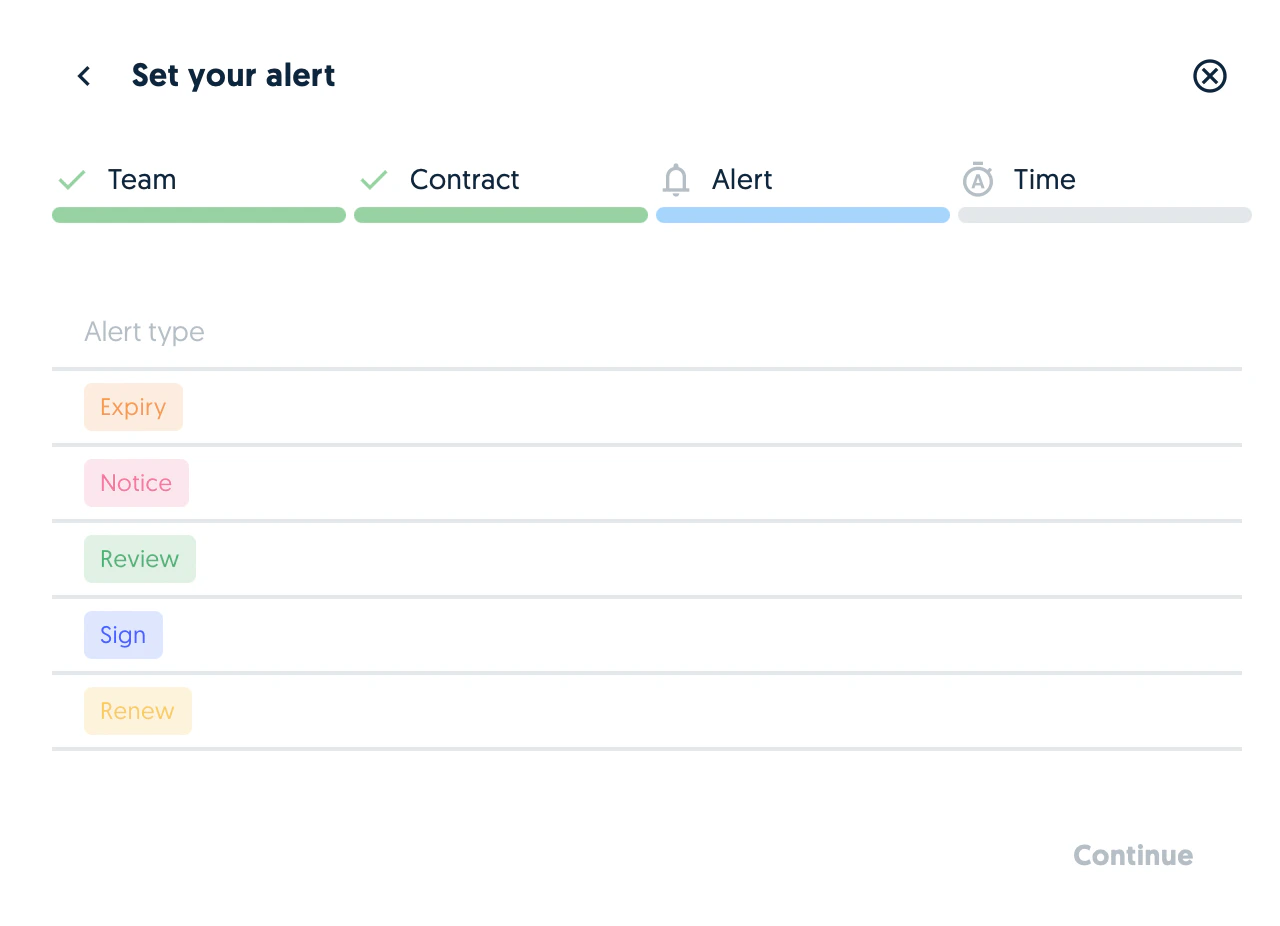
TextMine allows you to create custom alerts for your documents. These alerts can be for any of the following: Screenshot Alerts can be sent to multiple people and you can specify a time and day for the alert which will be delivered by email.

How to create an alert (Video)

To find out how to create an alert, what the following video or follow the step by step guide below.

Step by step guide on how to create an alert

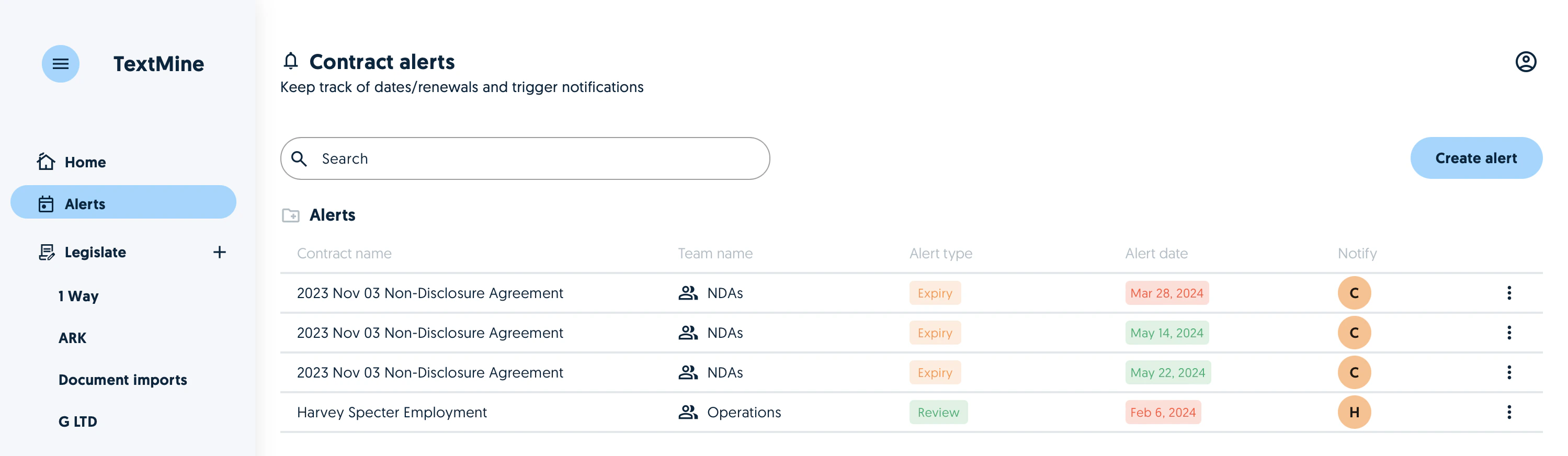
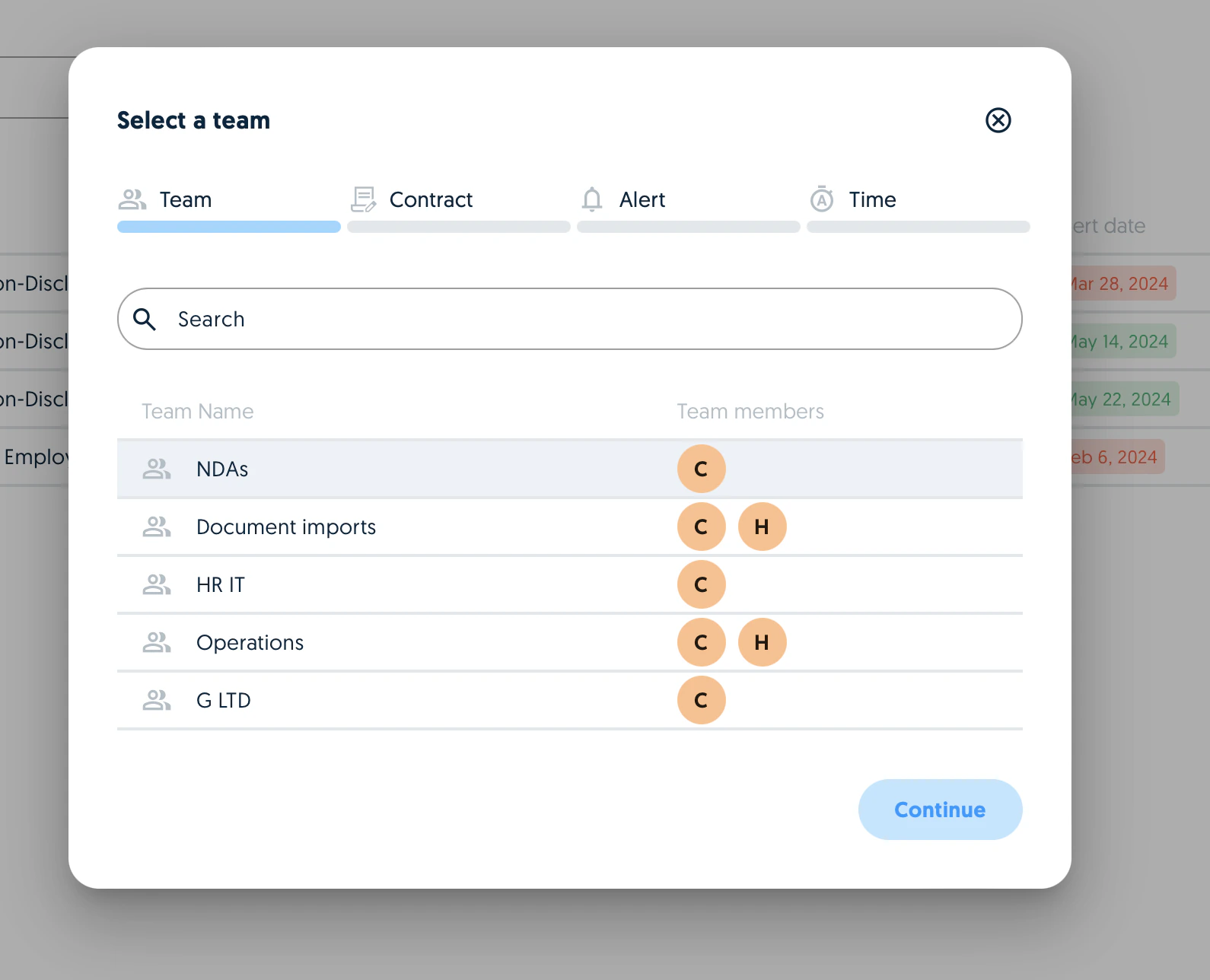
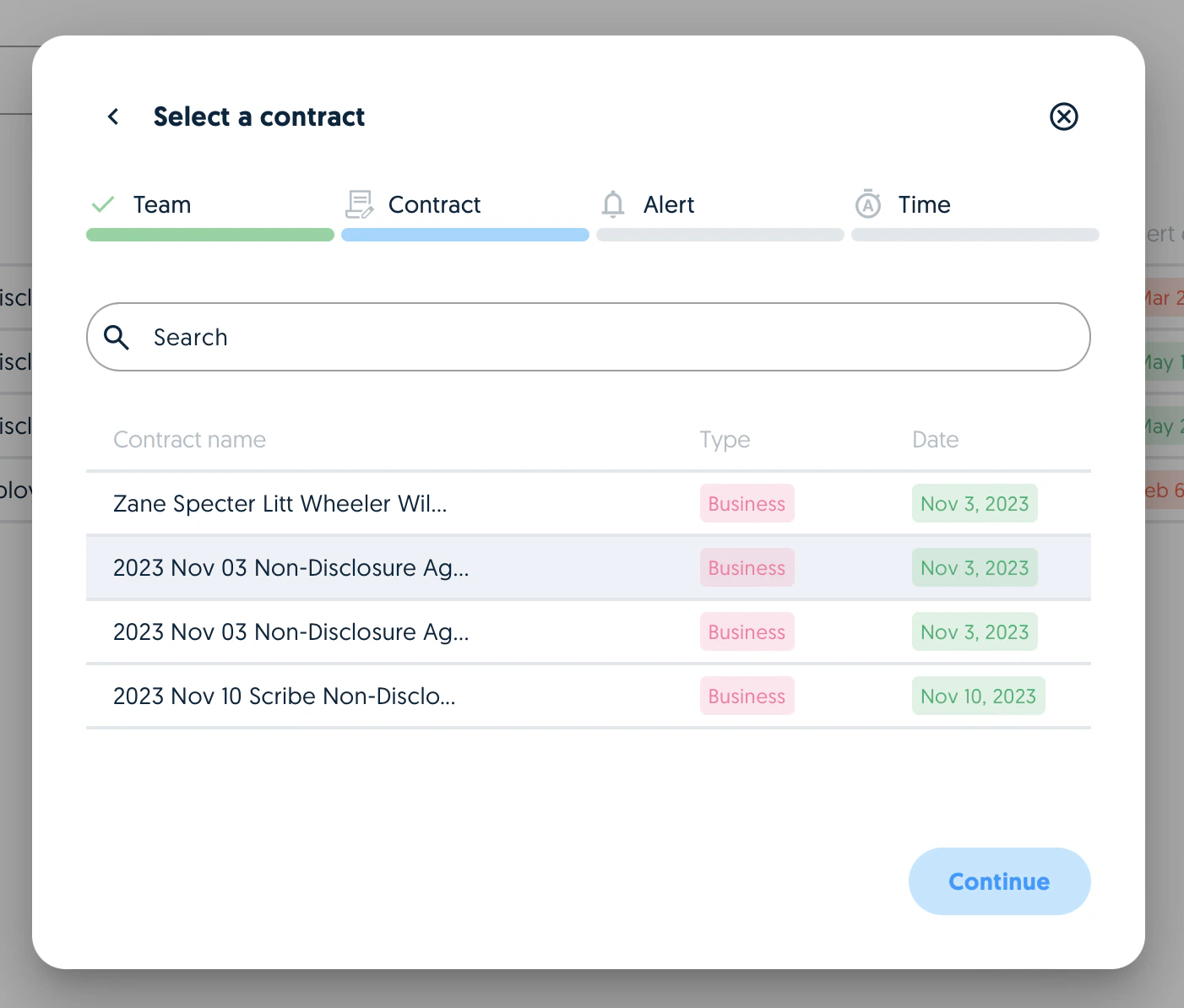
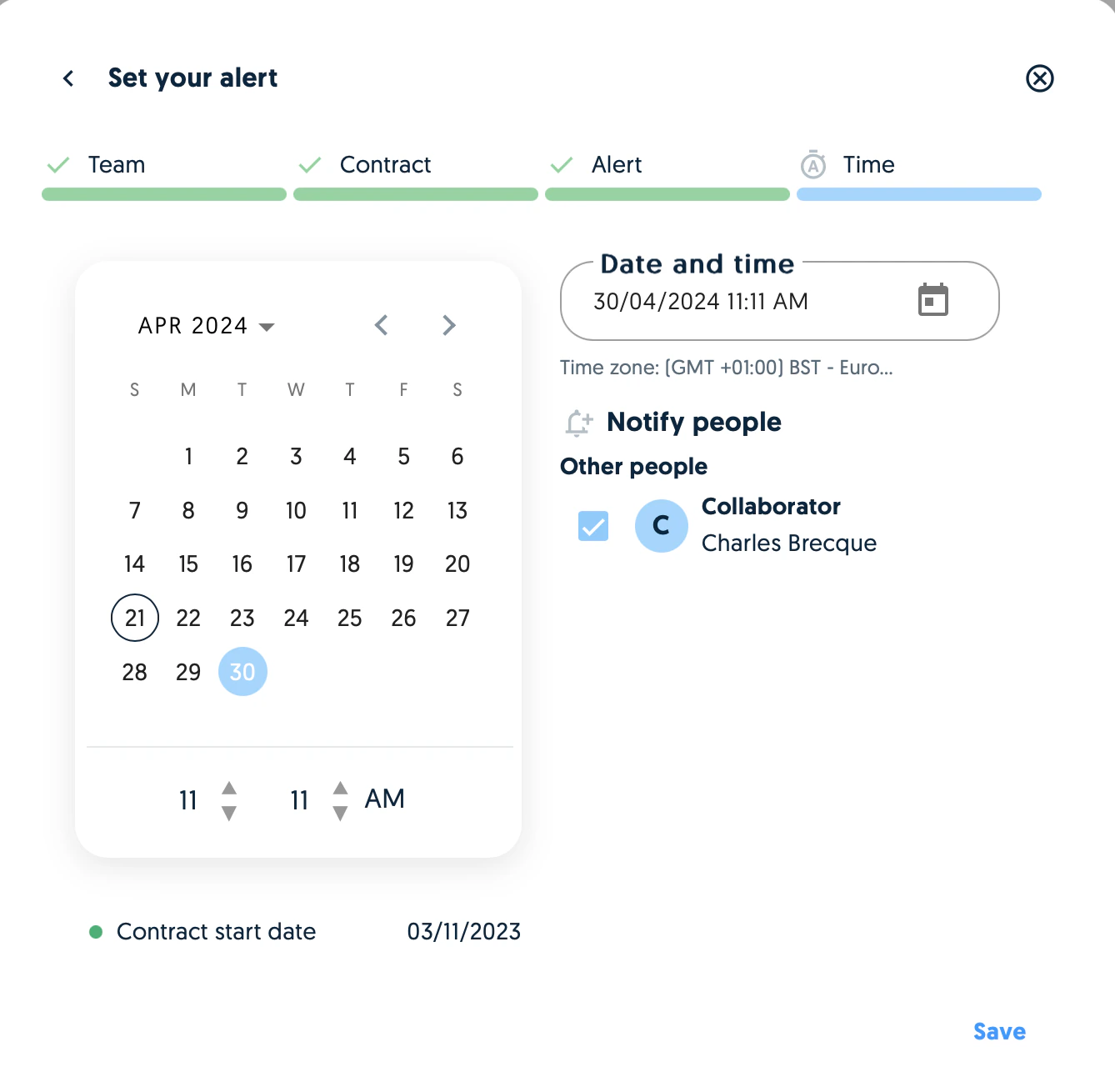
To create an alert, go to the Alerts tab in the top left of the side bar. Screenshot You will see existing alerts which you can manage. You can also create new alerts with the create alert button. The create alert button will ask you to specify the team followed by the document within that team for which you’d like to create an alert. Screenshot Screenshot After specifying the document you can then specify the type of alert you’d like to receive followed by who should receive it and when. Alerts can only be sent to users who have access to the document. Screenshot Click on save once you are happy with the alert. It will now appear in your dashboard.