This page was imported from Intercom and may describe older navigation or terminology. Source: https://help.textmine.com/en/articles/9220892-creating-contracts-and-documents-in-legislate
Legislate allows users to create instances of Scribe templates via forms. For example, the legal team might have an employment contract template which the HR team will typically fill in and send to new hires. With Legislate, the HR team will only need to fill in a form to generate the final version of the employment contract template for the new hires. This article shows you how to create documents in Legislate from Scribe templates!

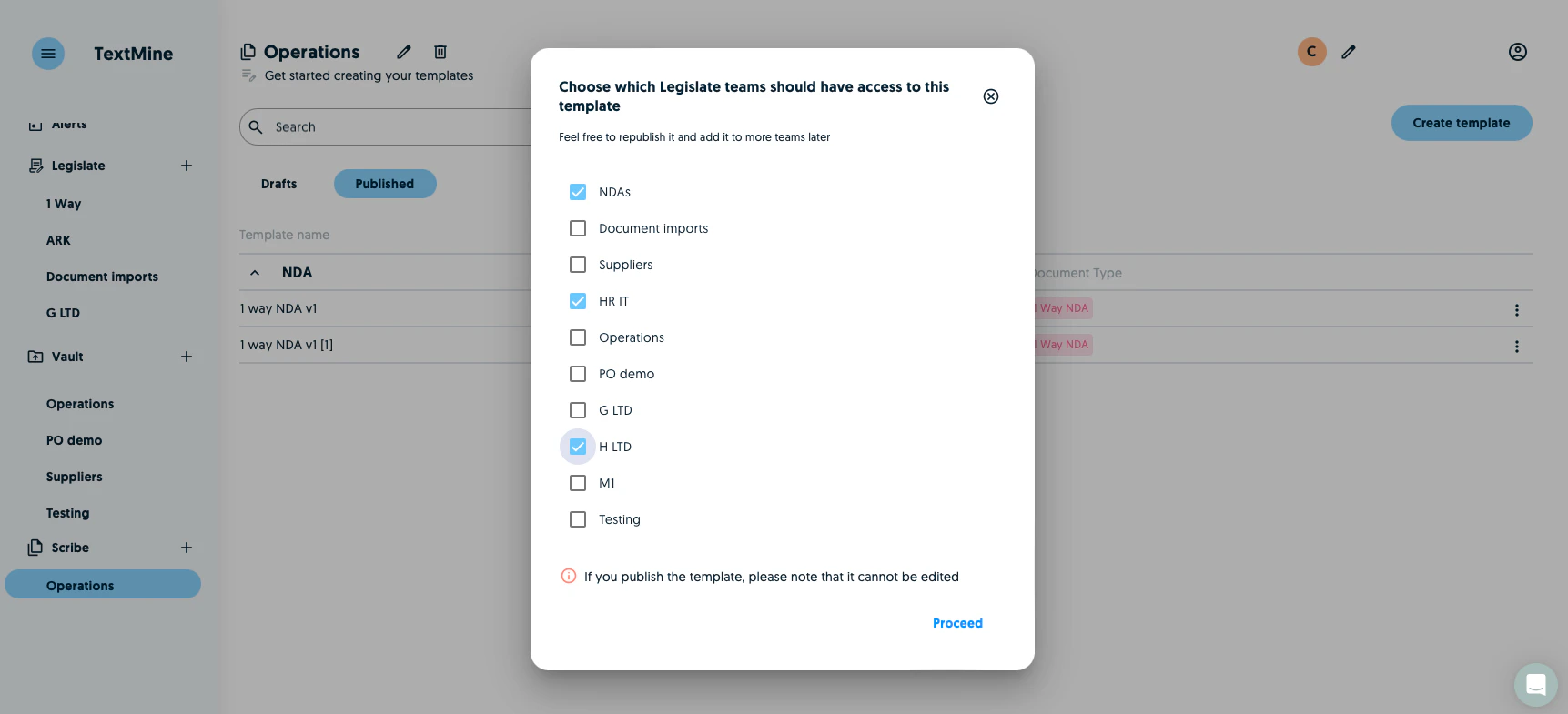
Publishing Scribe templates to Legislate teams

Scribe allows you to choose which teams in Legislate will have access to any given Scribe template. Screenshot Legislate users do not have access to Scribe by default which means that a Scribe editor will need to provide template access to Legislate users.
Creating new documents from Scribe templates

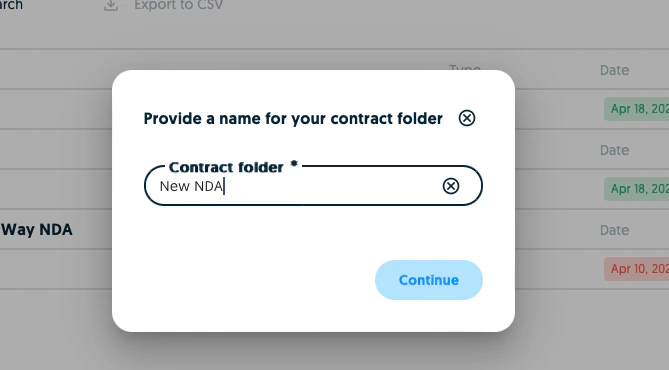
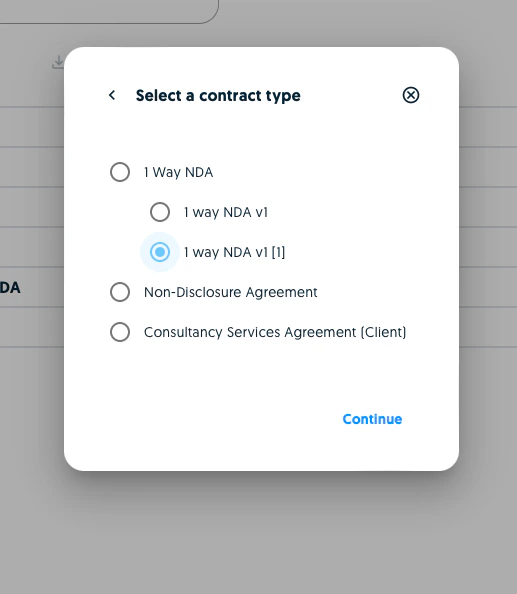
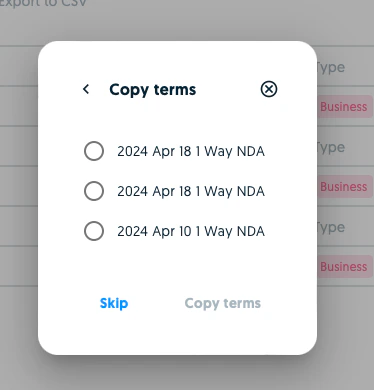
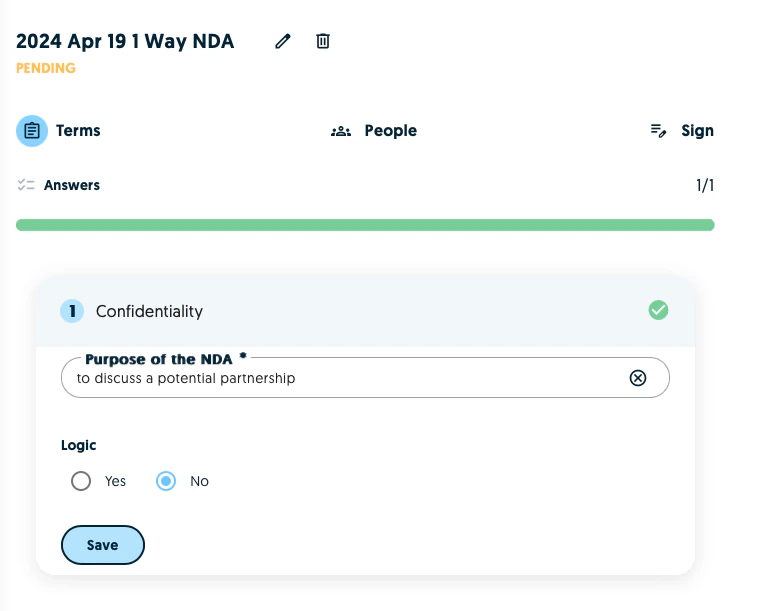
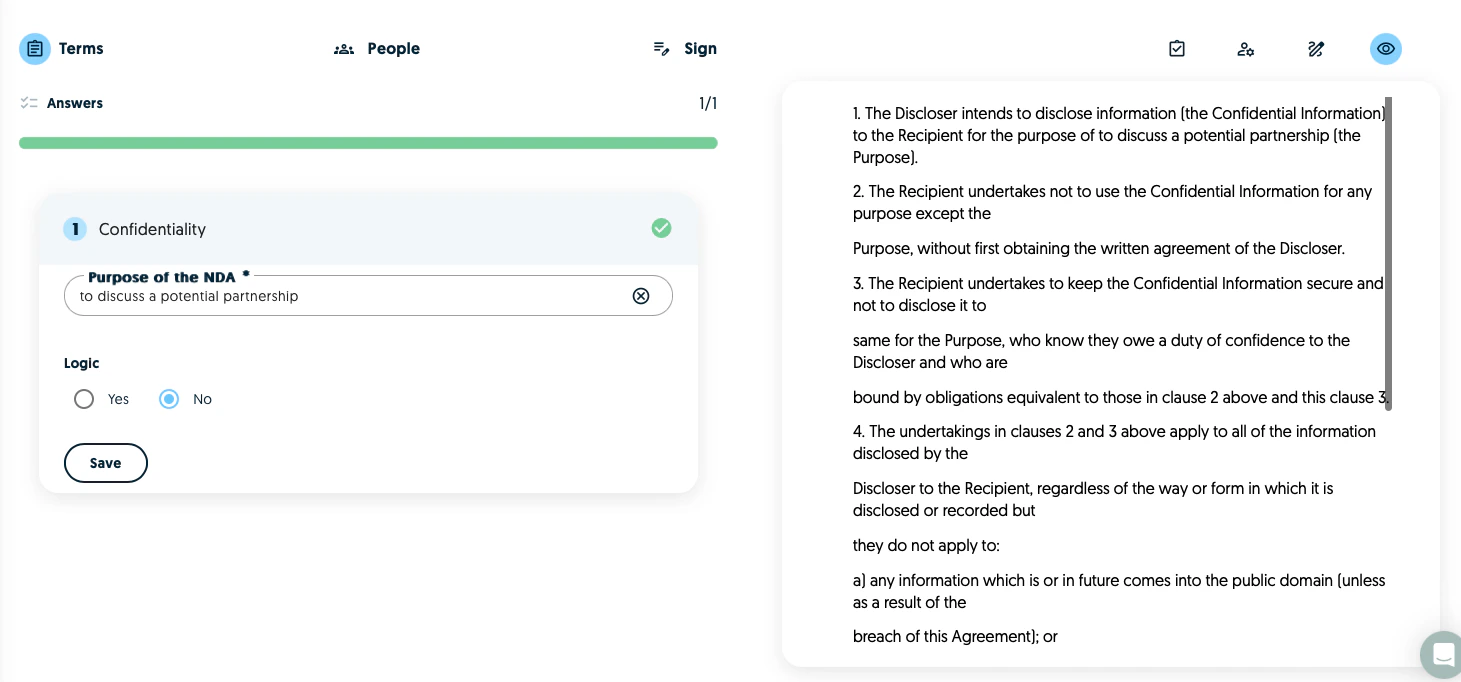
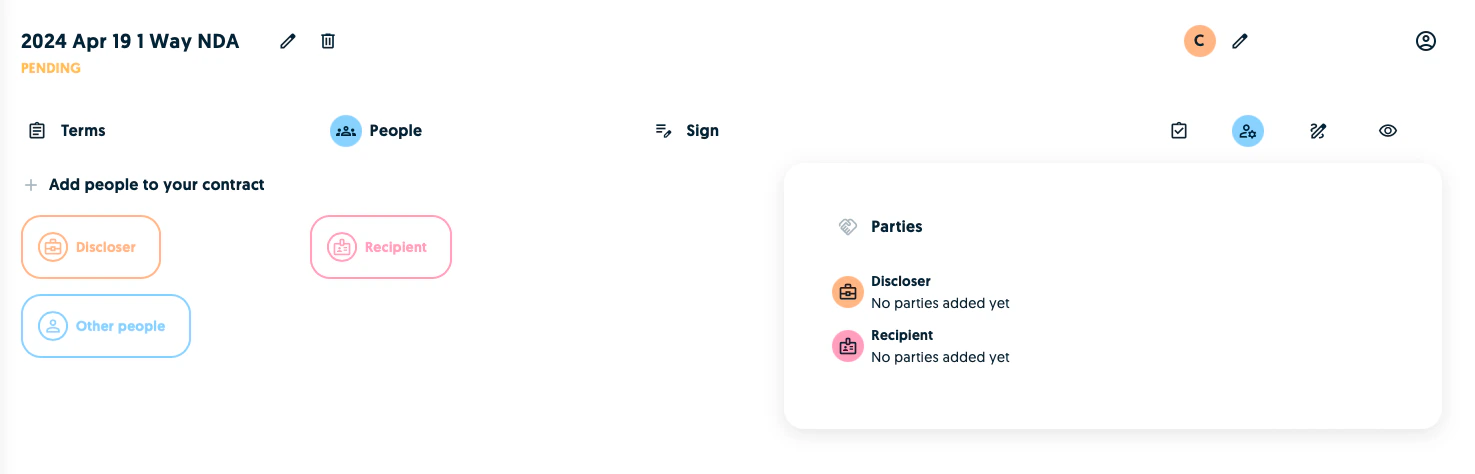
Once a template has been published to the correct teams, it can be created within a Legislate team. When in the team, click on the Create button and provide a name of the folder where this document will be stored. You can also create a new document within an existing folder. Screenshot You can then select the Scribe template version and click on Continue. Screenshot You can then choose to copy terms over from a previous document or start from scratch. Screenshot Once this has been done, you’ll then be presented with the Scribe form which will need to be completed in order to render the complete document. Screenshot After filling in the form and clicking on Save, you’ll be able to visualise the document in the preview tab. Screenshot You can add parties to the document via the people tab. A party can be a company or an individual. When specifying the company, you will be required to specify the signatory. Screenshot You can also provide access to document collaborators as well as witnesses and supporting signatures via the Other people button.