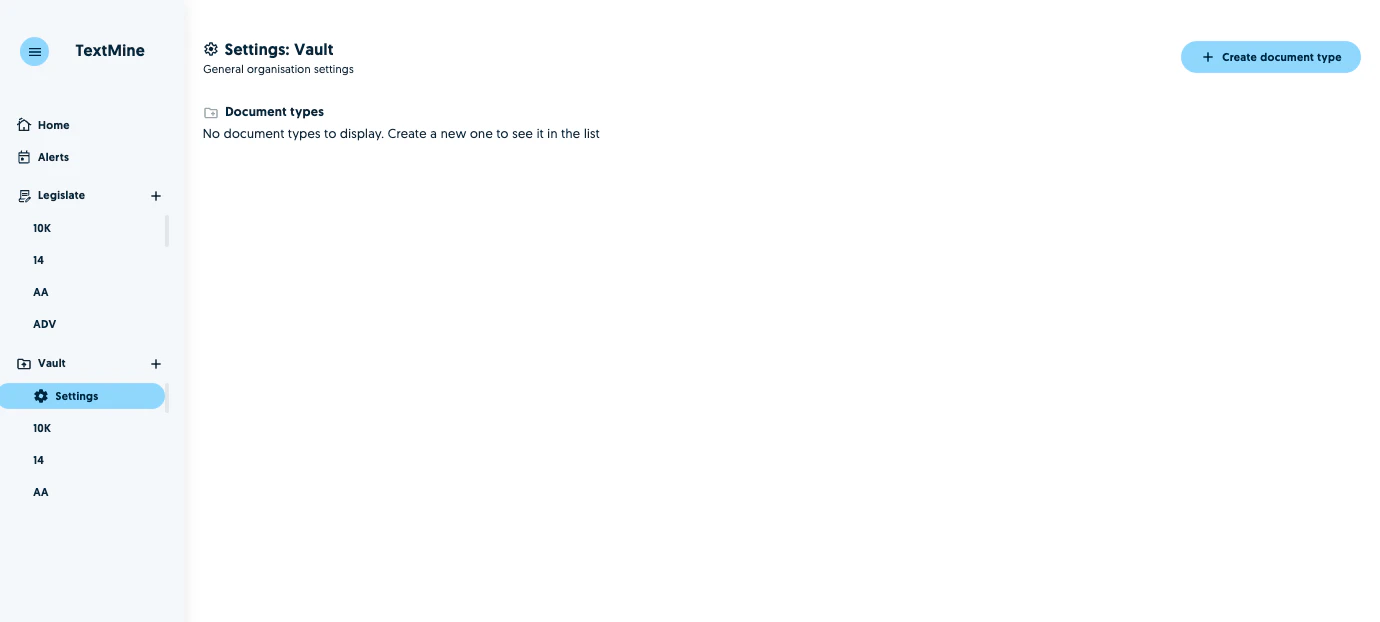
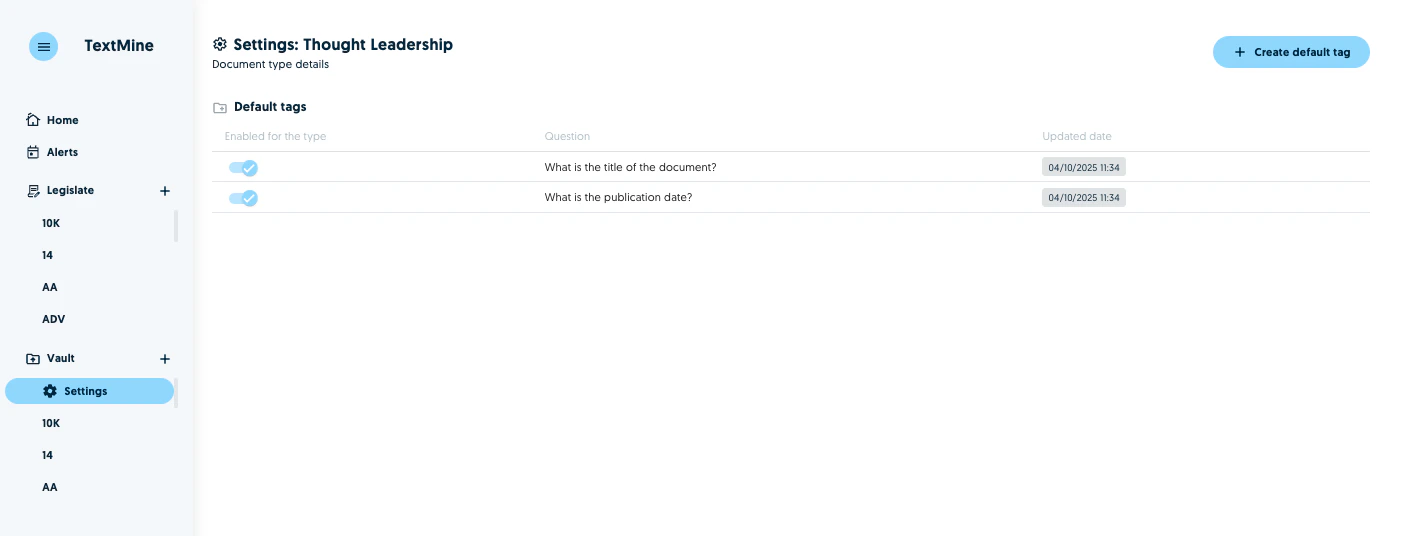
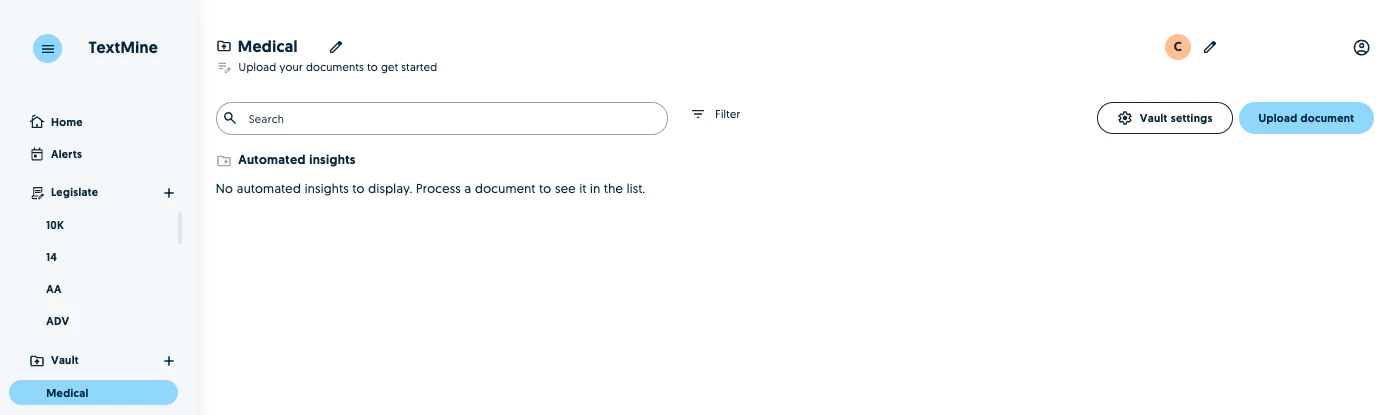
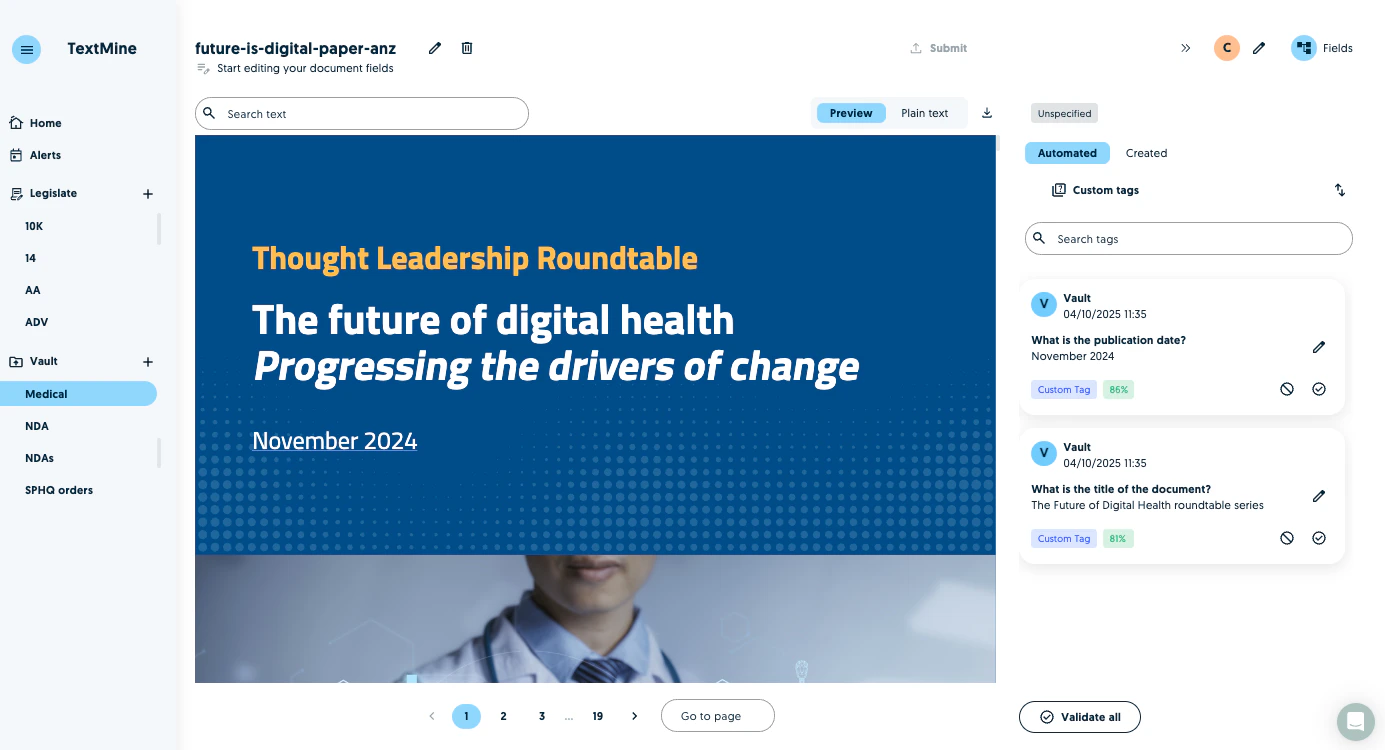
When uploading document to Vault, the model will classify documents based on one 60 types and then extract the key terms based on the type. Previously, users would need to submit requests to TextMine to add new types.It is now possible for users to create their own custom document types and associated tags in Vault.
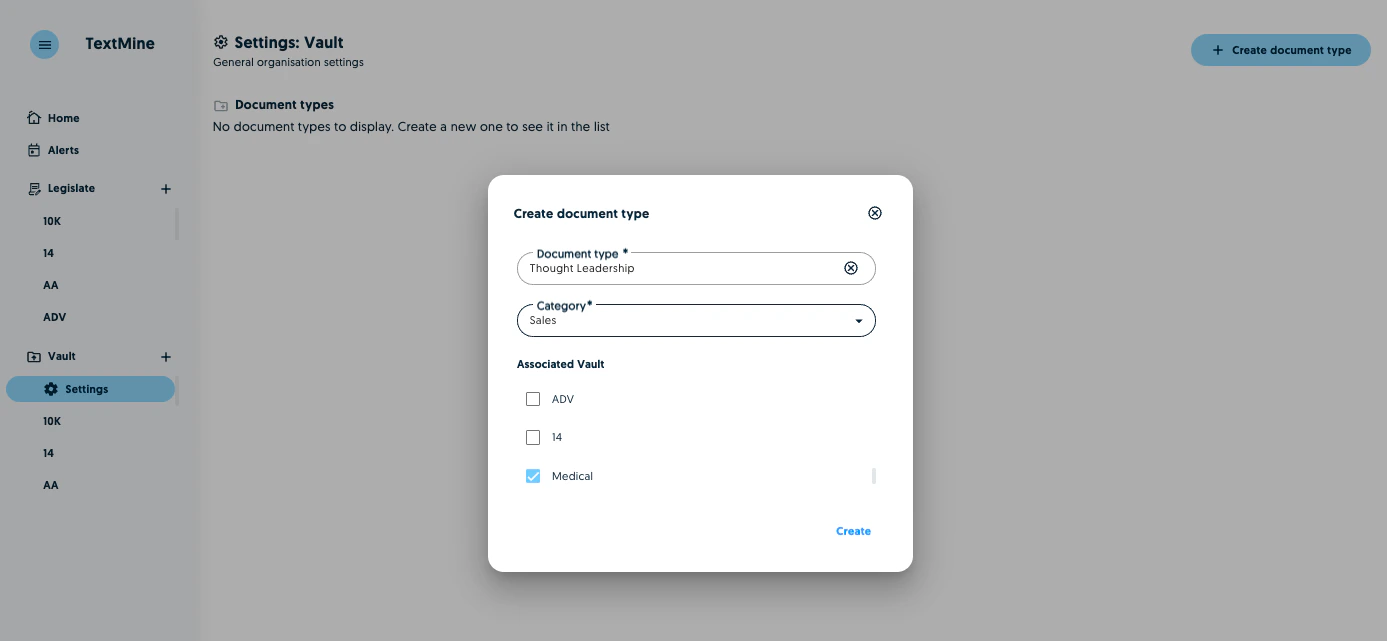
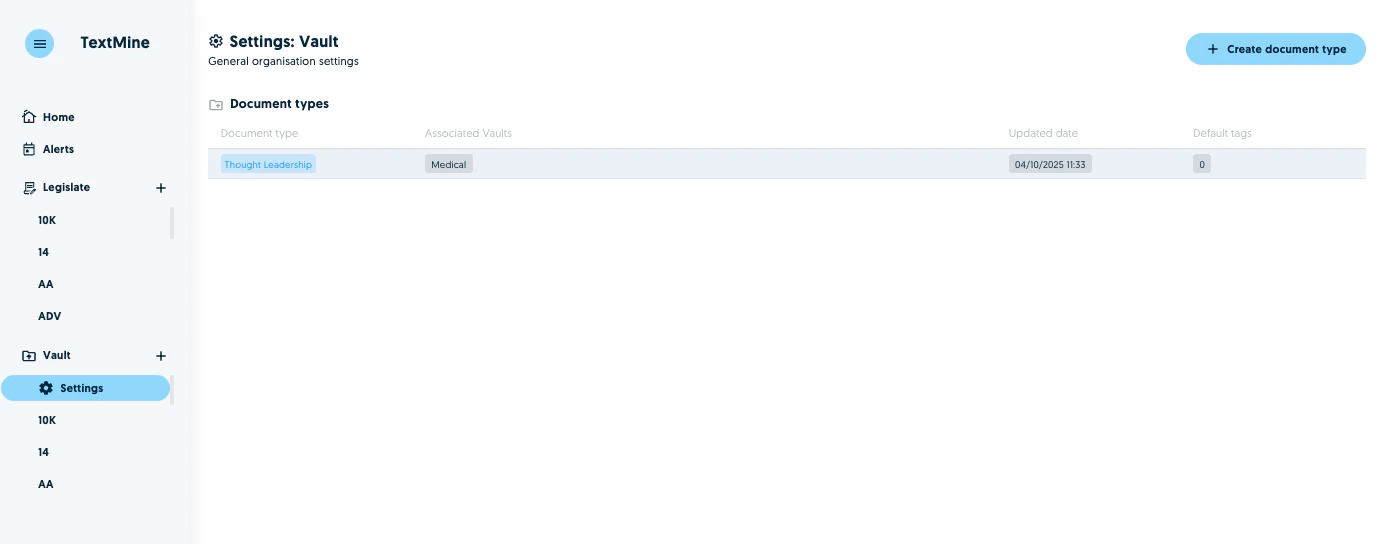
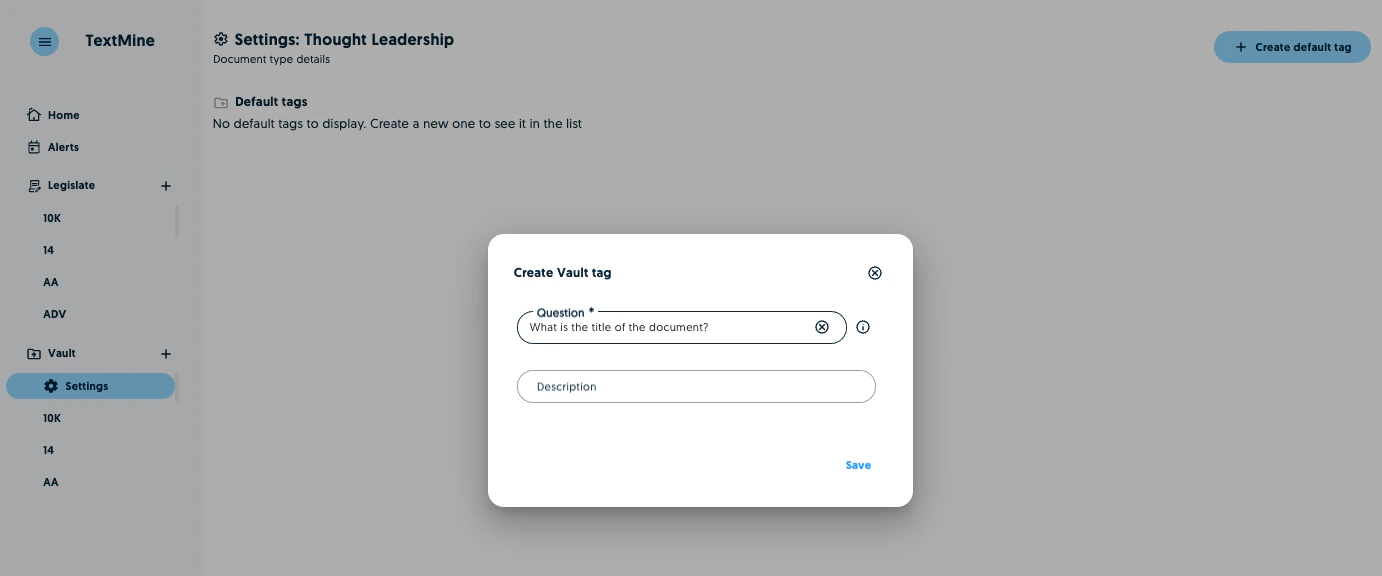
Go to the organisation settings under the Vault section in the sidebar and create a new document type.You will then have to specify a name and category for the new document type as well as which Vault teams should have access to the custom document type.Avoid acronyms to improve the accuracy of the classification. For example, call a type Non-Disclosure Agreement instead of NDA. However, it can make sense to name a new type based on the acronym if the acronym or code is how the document type is referred to e.g. Form ADV, 10-Q, etc.Once you’ve created your document type you will see the document type in the list. Click on the type to create tags for the new custom type.You can enable/disable the tags for the type.
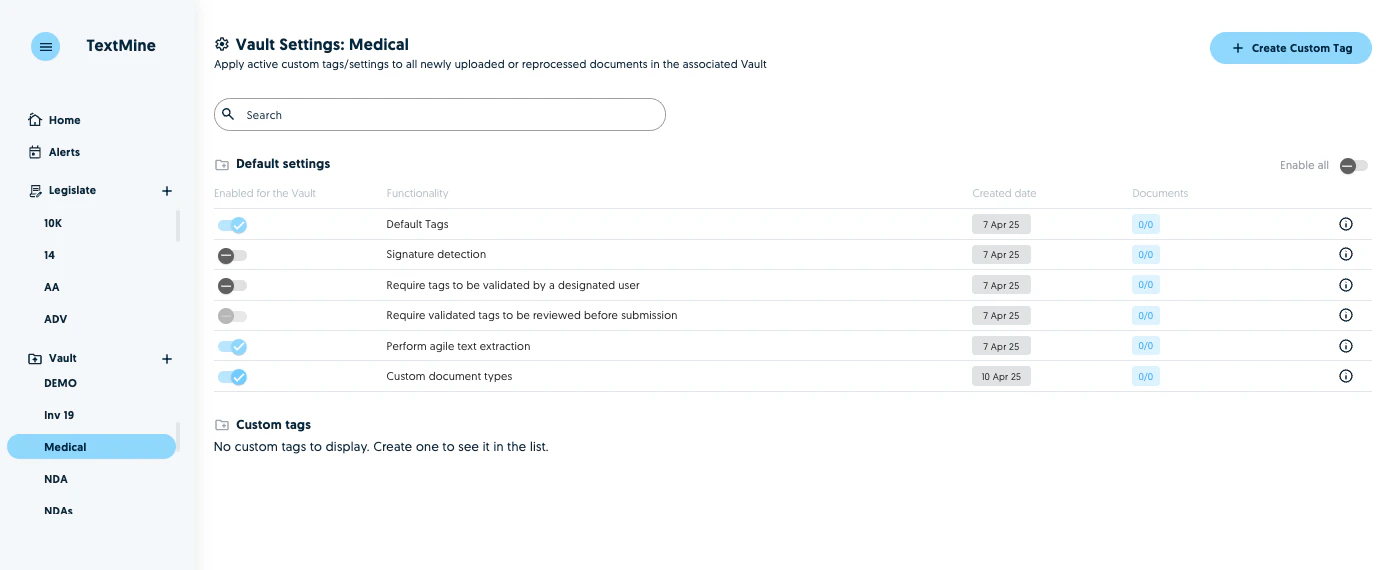
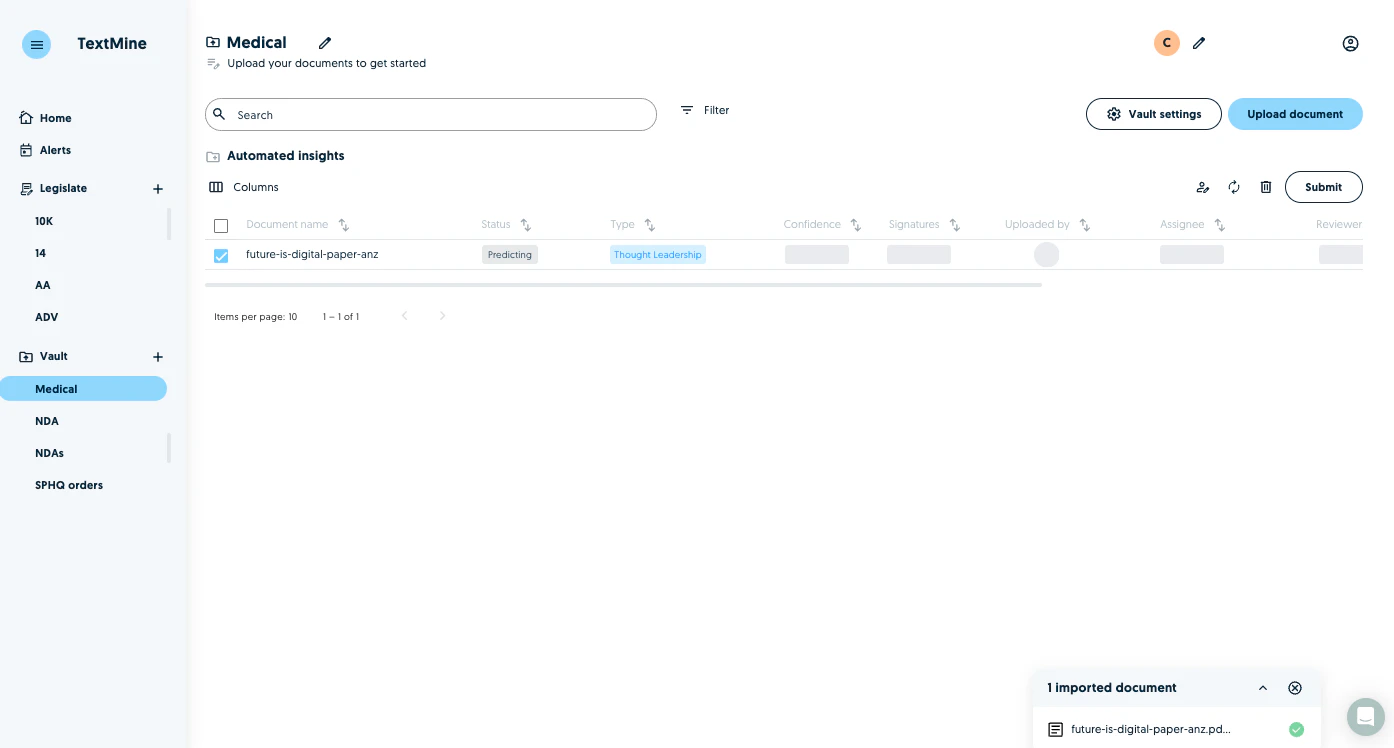
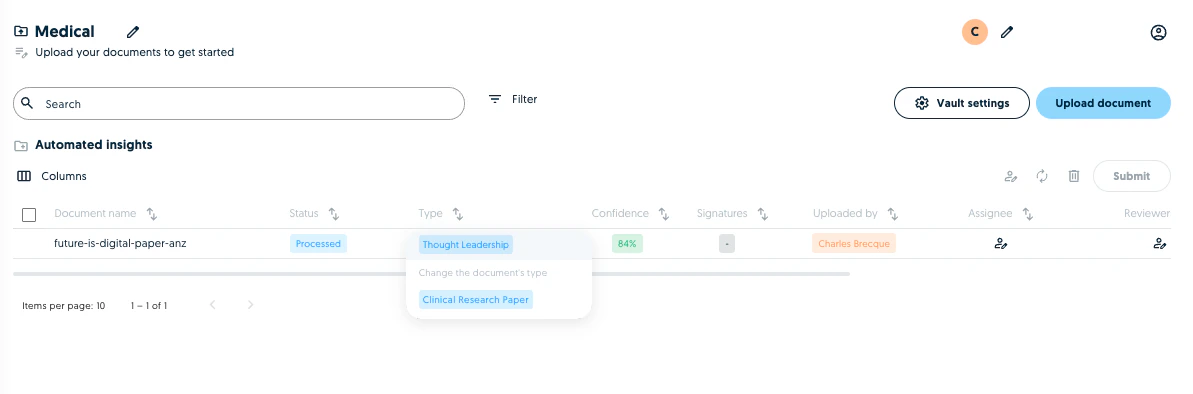
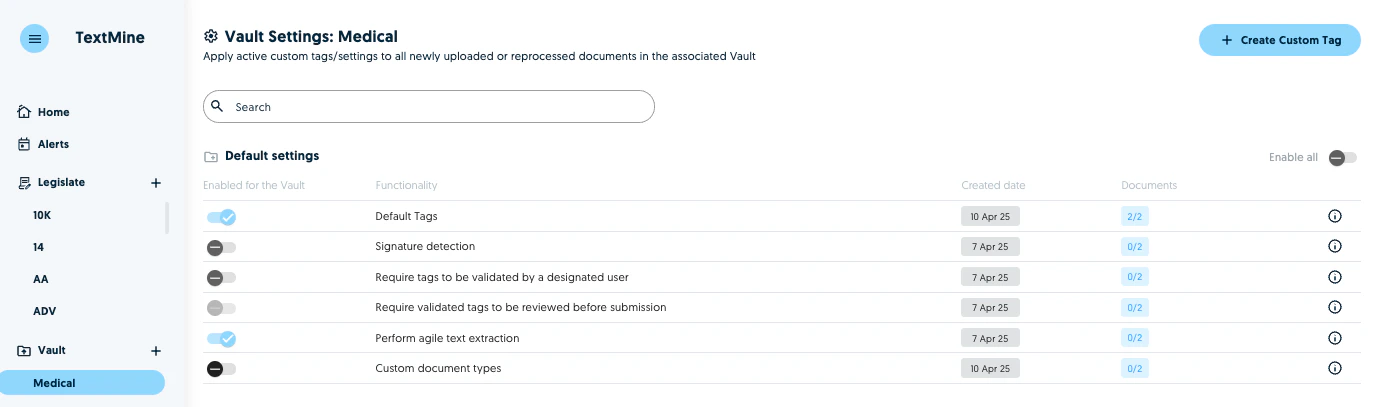
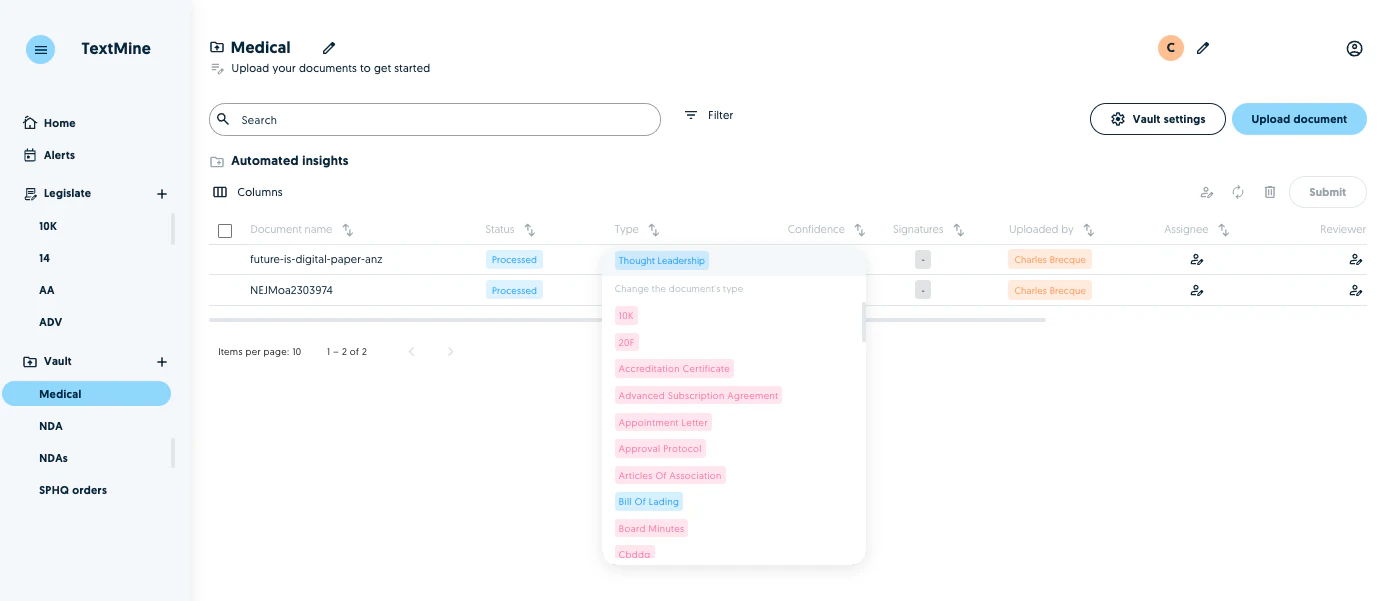
Once a custom document type and associated tags has been enabled for a team, you can activate the custom document type pipeline from the team’s Vault settings in the top right.Then enable custom document types.If this setting is enabled, Vault will then classify the uploaded documents amongst the custom types you have created.You can also update the type of a document to a custom type by clicking on the type field of the document and selecting the corresponding type from the list.The list of types will correspond to your custom types only. To change to a TextMine default, please read the following section.
Changing a default document type to a custom type and vis versa
To change a custom type to a default type, disable custom types in the team settings.When you select the type in the team view, you will then be able to see the list of default types.If you would like to change a default type to a custom type, select custom document types from the settings. When you click on the type the list will be limited to the custom types.Whilst we are pro-active with fine-tuning the models, we might not have done training for new custom types and tags. Let us know if you are seeing inconsistent performance and we can improveme the models with additional fine-tuning.