This page was imported from Intercom and may describe older navigation or terminology. Source: https://help.textmine.com/en/articles/10559277-14-feb-2025
Vault Dashboard
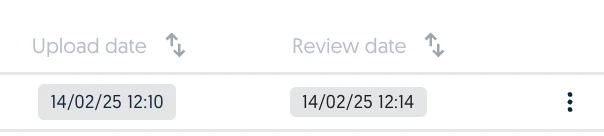
The Vault dashboard now provides greater visibility into document uploads. This now includes the upload date, uploader name, reviewer name and review date. All columns can be used to sort the documents in Vault.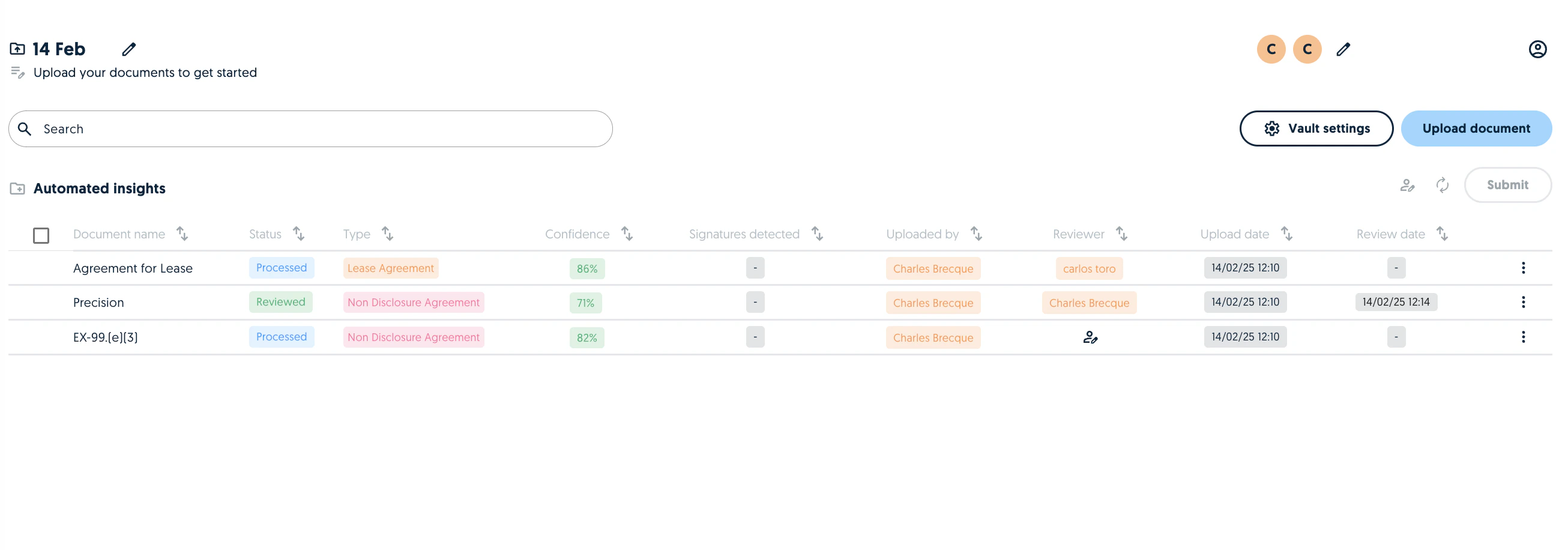
Tag highlighting
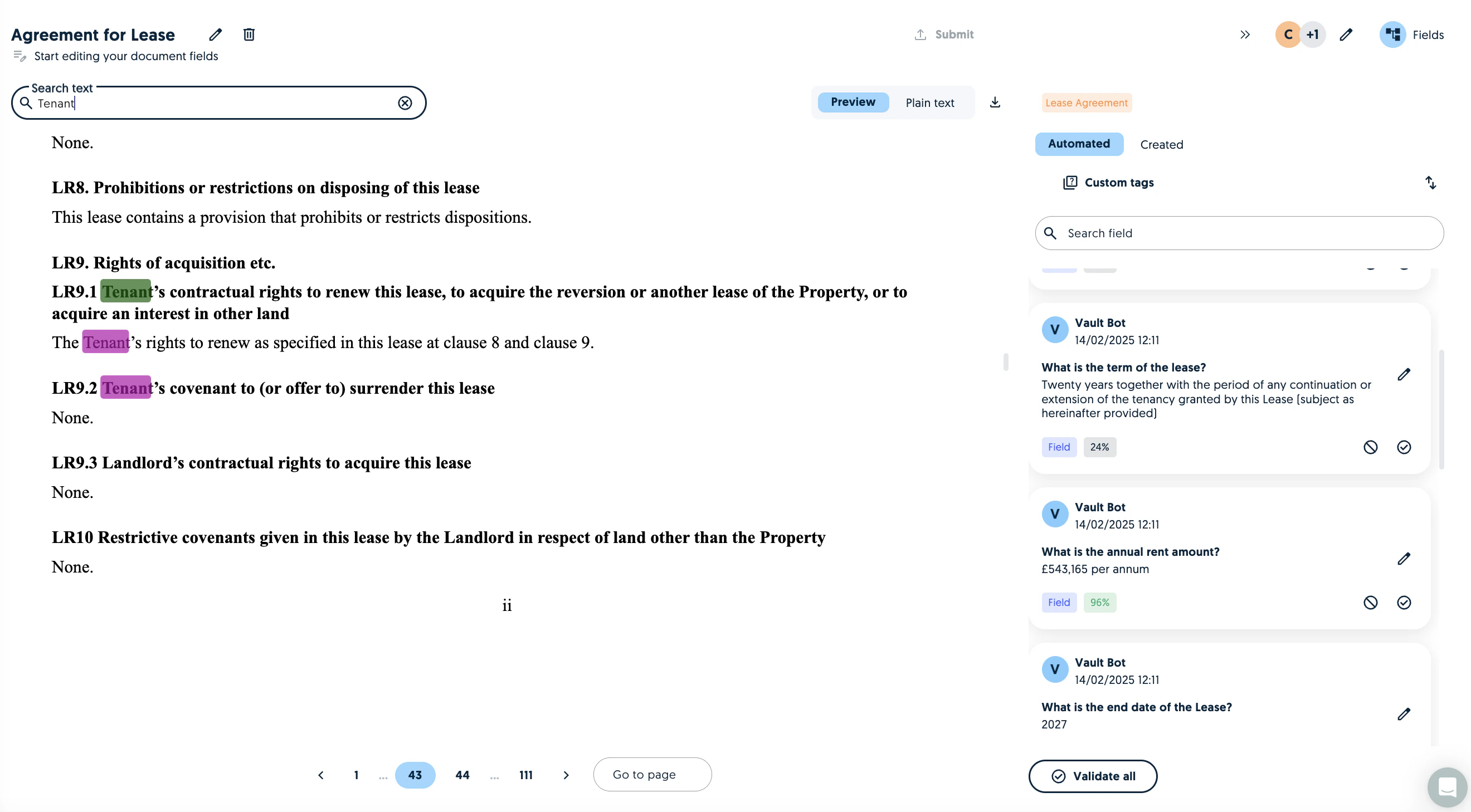
Within a document, it is now possible to see the highlighted tags in the pdf preview. This was previously only possible in the plain text. A key thing to note is that the highlighting might not work on scanned documents. However, the search will always work on the Plain text tab.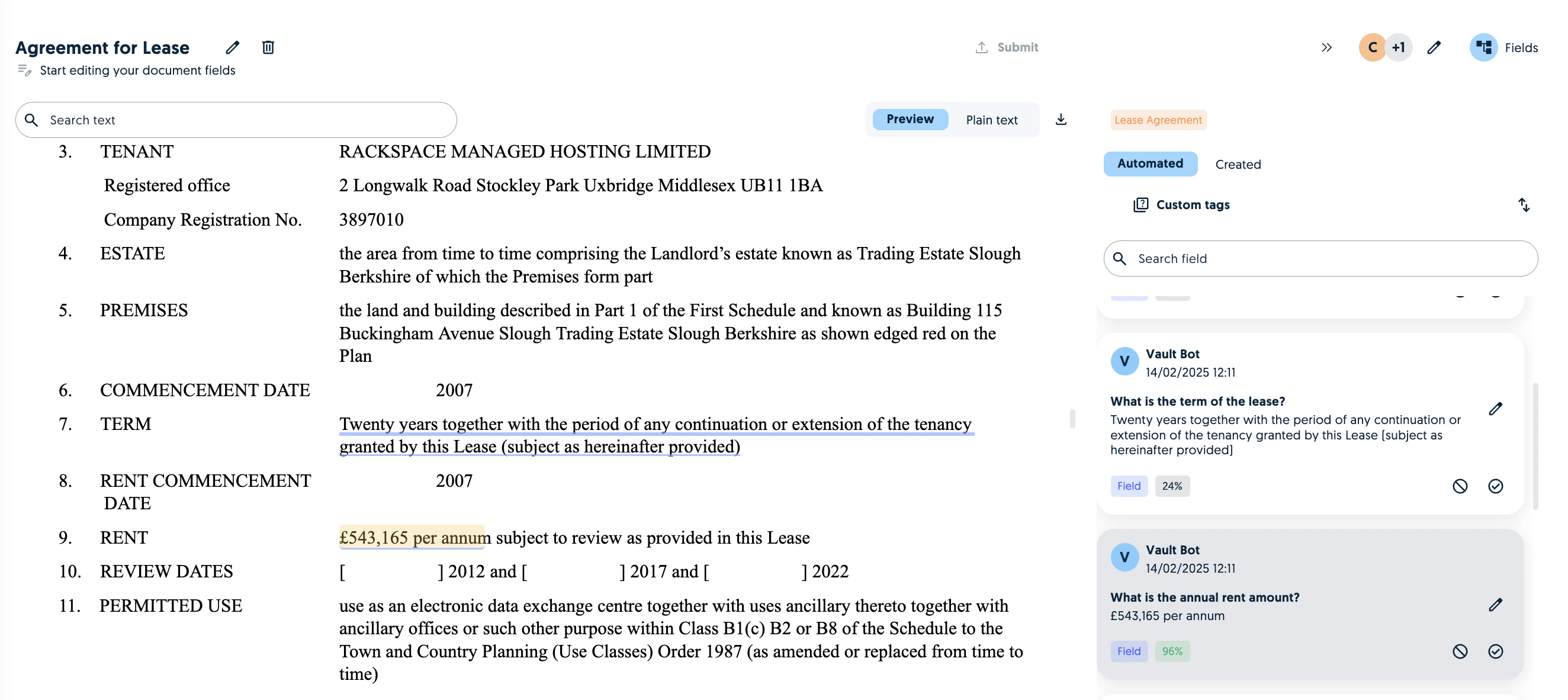
Reviewers
Assigning Reviewers
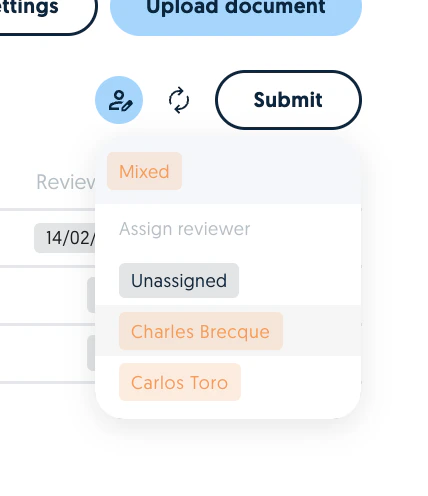
You can now assign uploaded documents to reviewers.Assign reviewers in bulk:
Select the relevant documents and assign the reviewer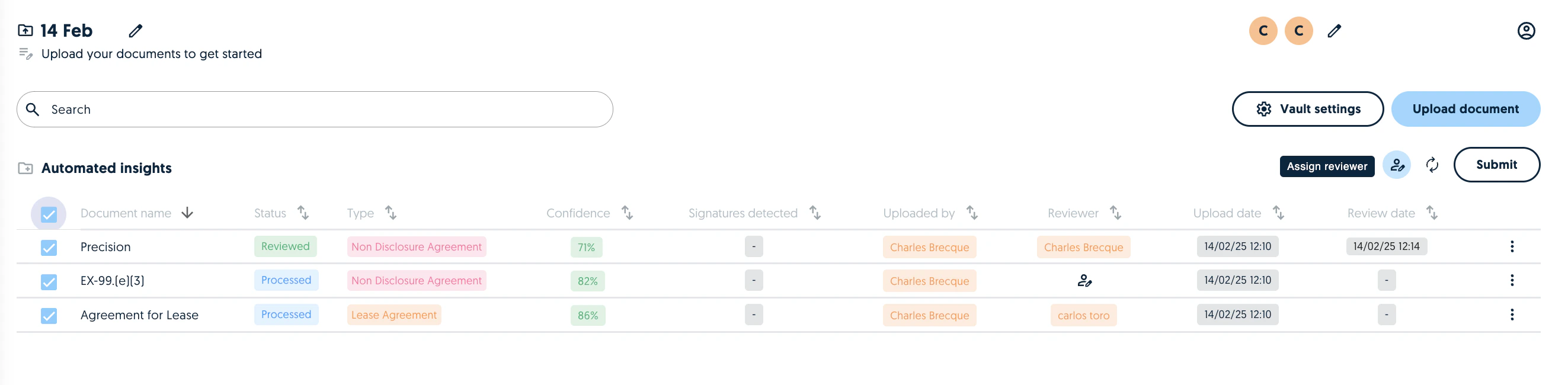
Assign reviewers one by one
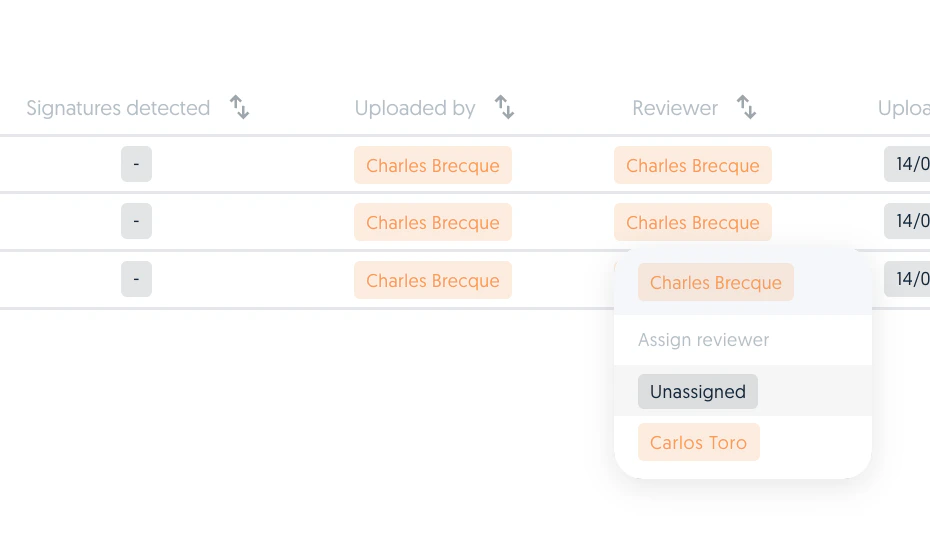
Click on the reviewer label and assign a reviewer. You can also un-assign or re-assign a document’s reviewer at any time.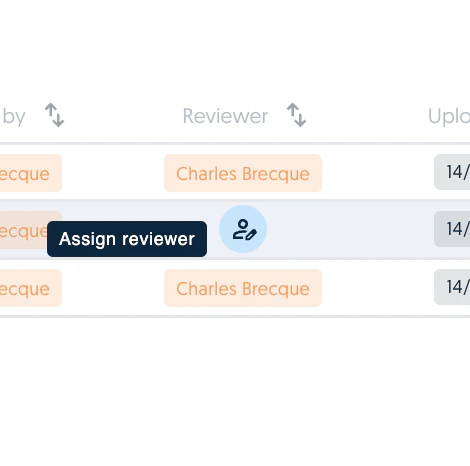
Audit Trail
The review date now appears next to individual tags when a field is validated.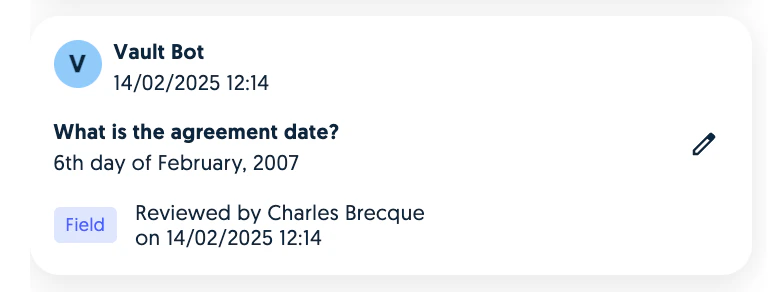
Validation settings
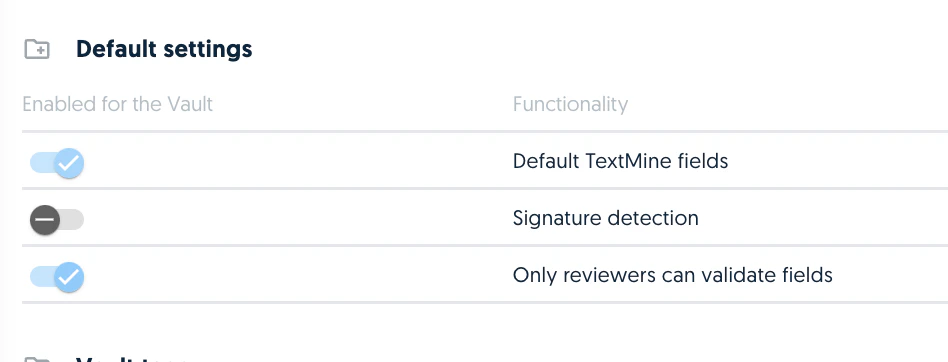
Within the Vault settings it is now possible to enforce the review strategy by enabling the “Only reviewers can validate fields” setting.