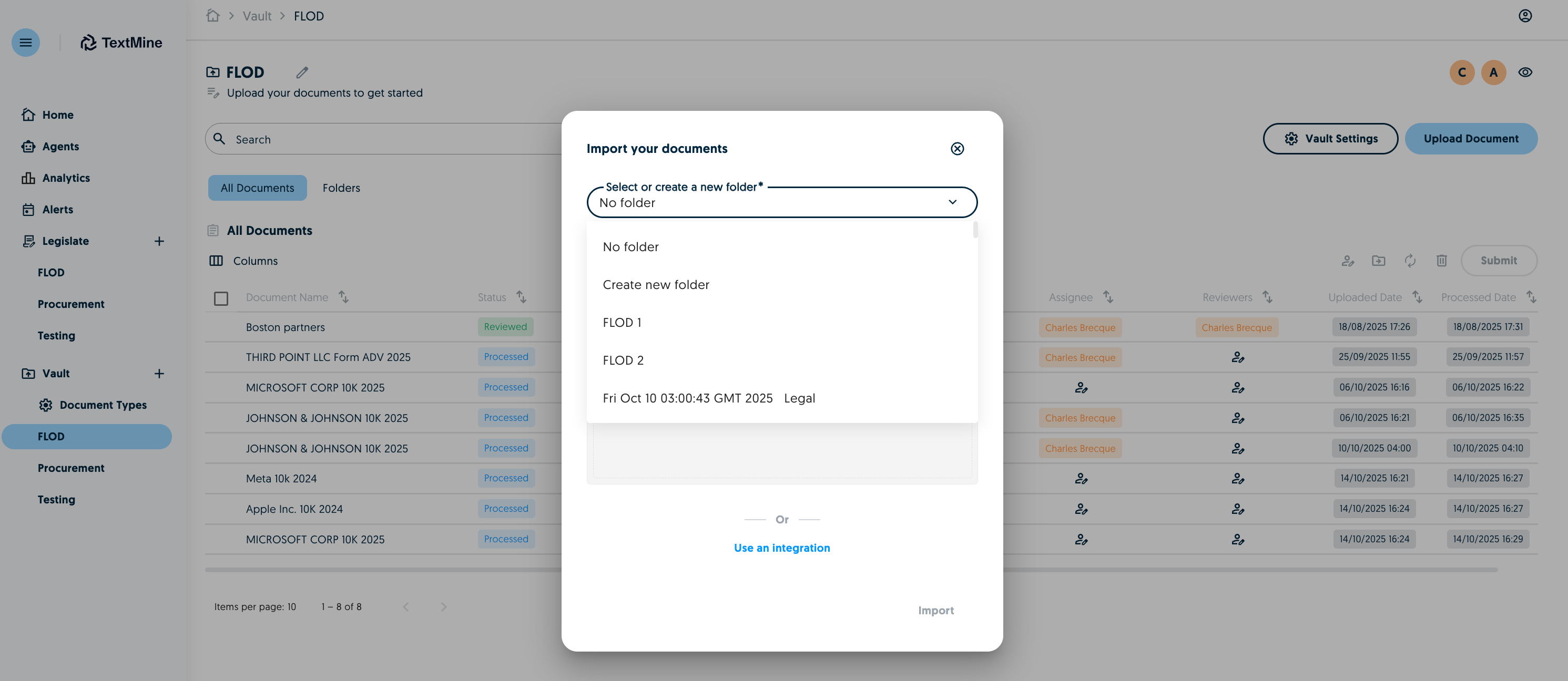
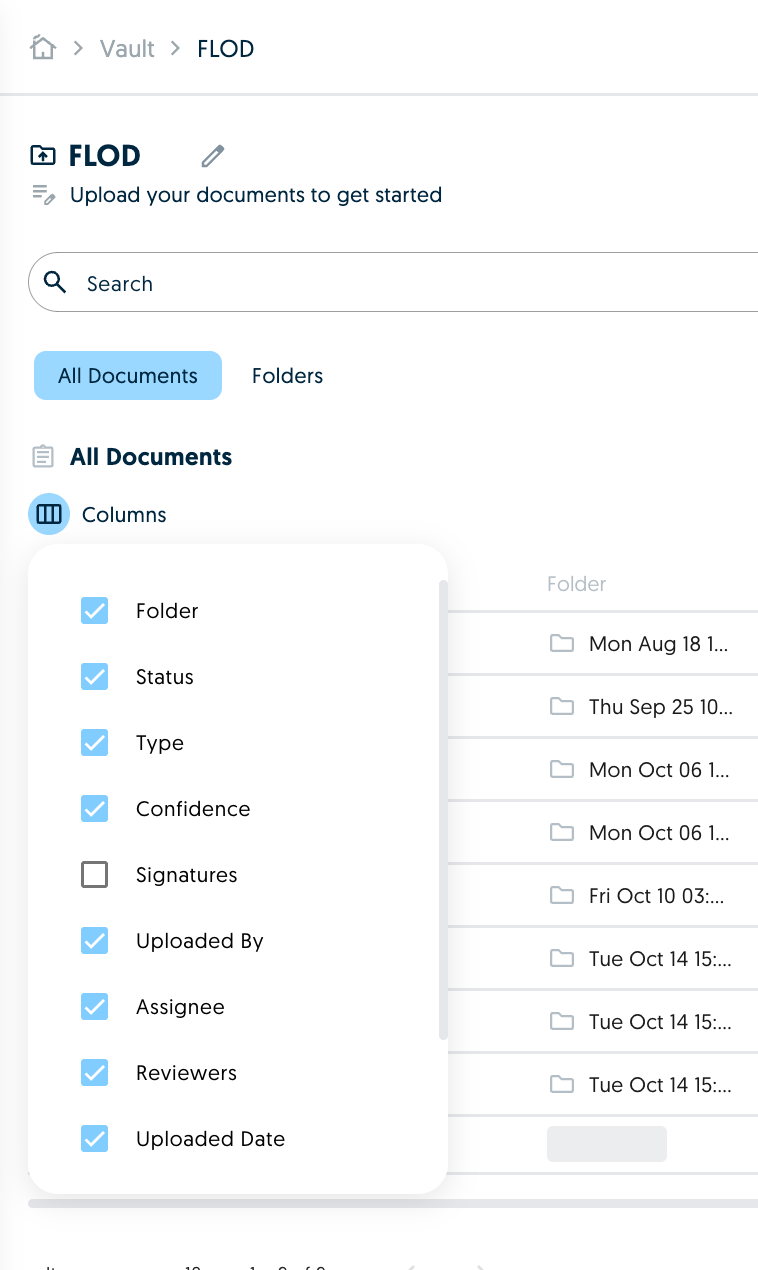
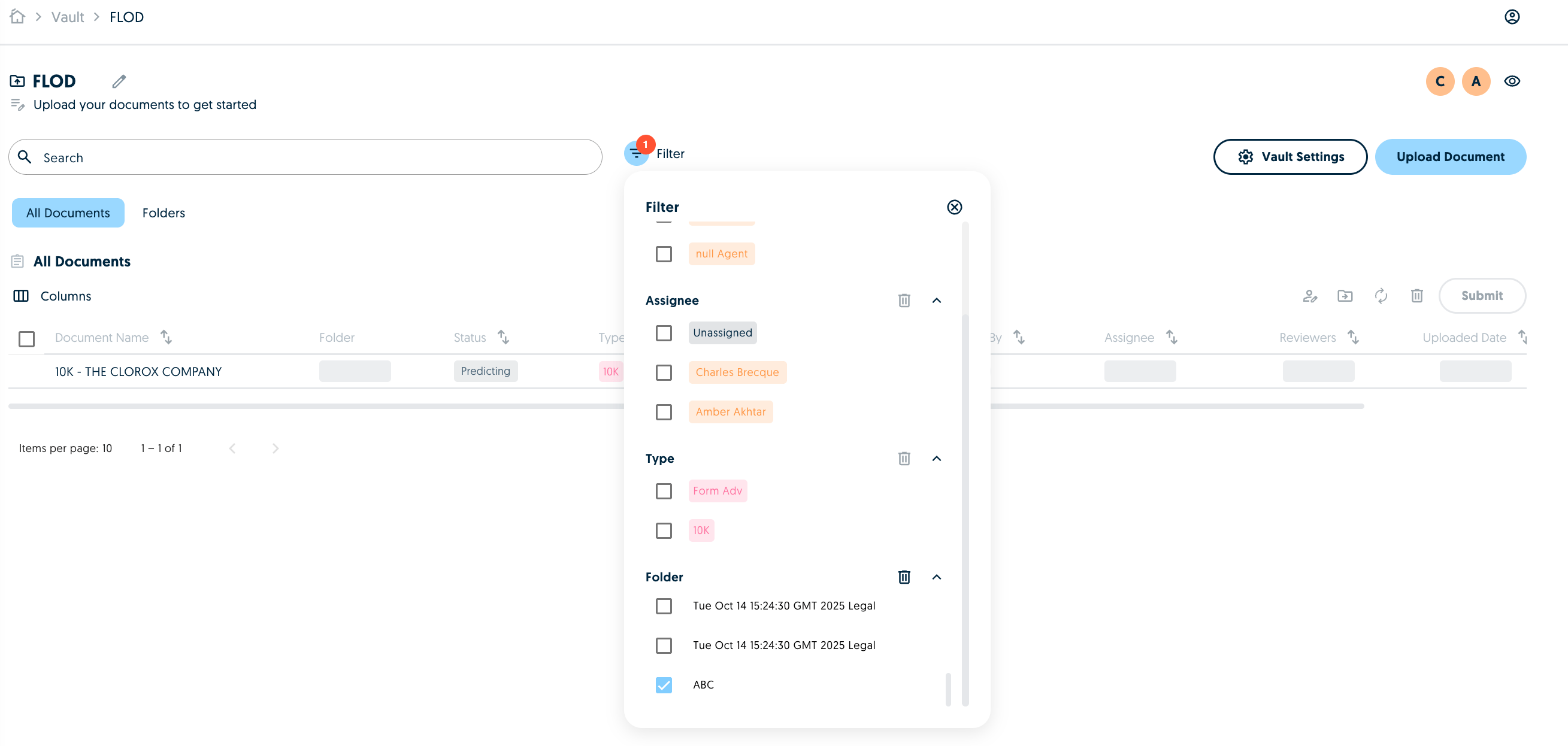
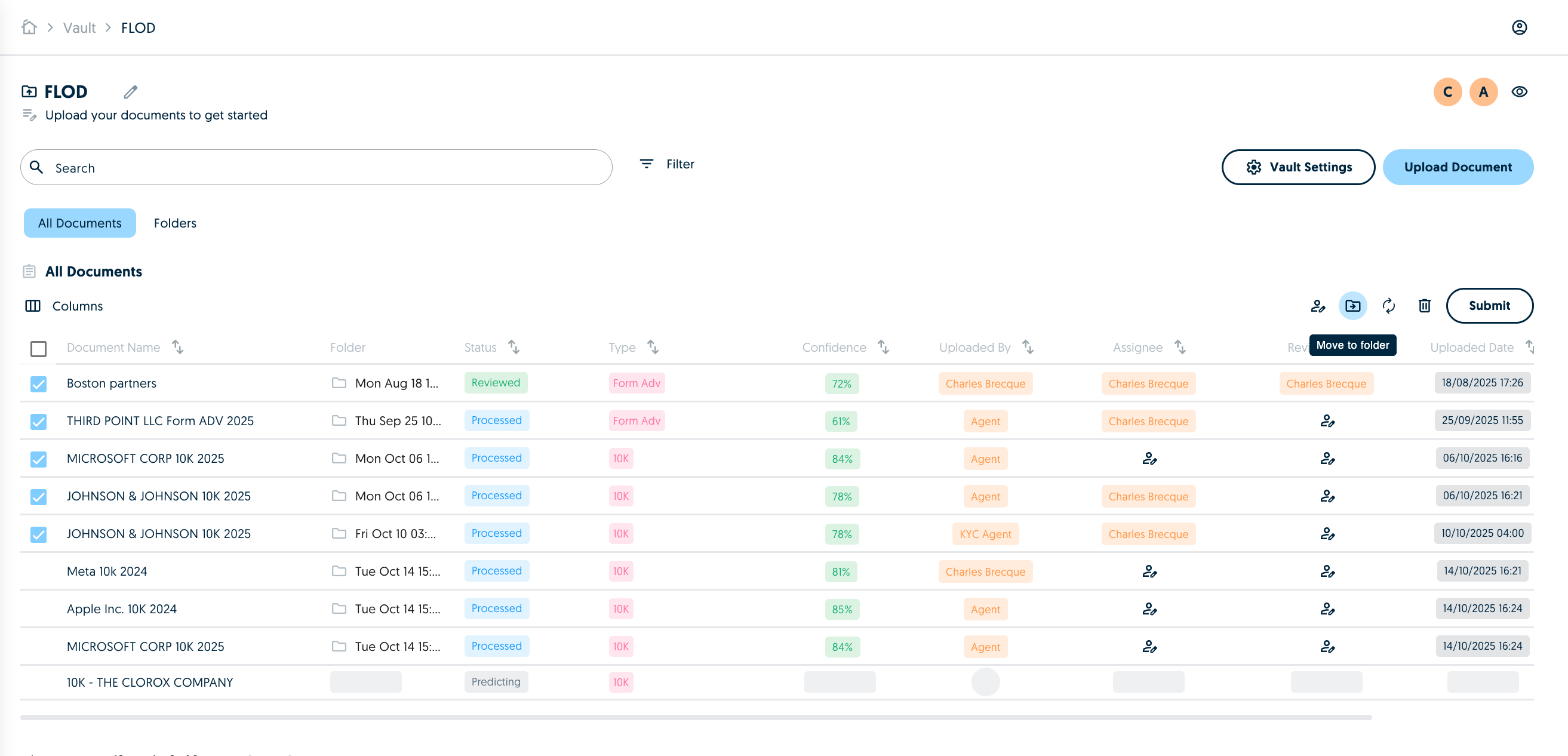
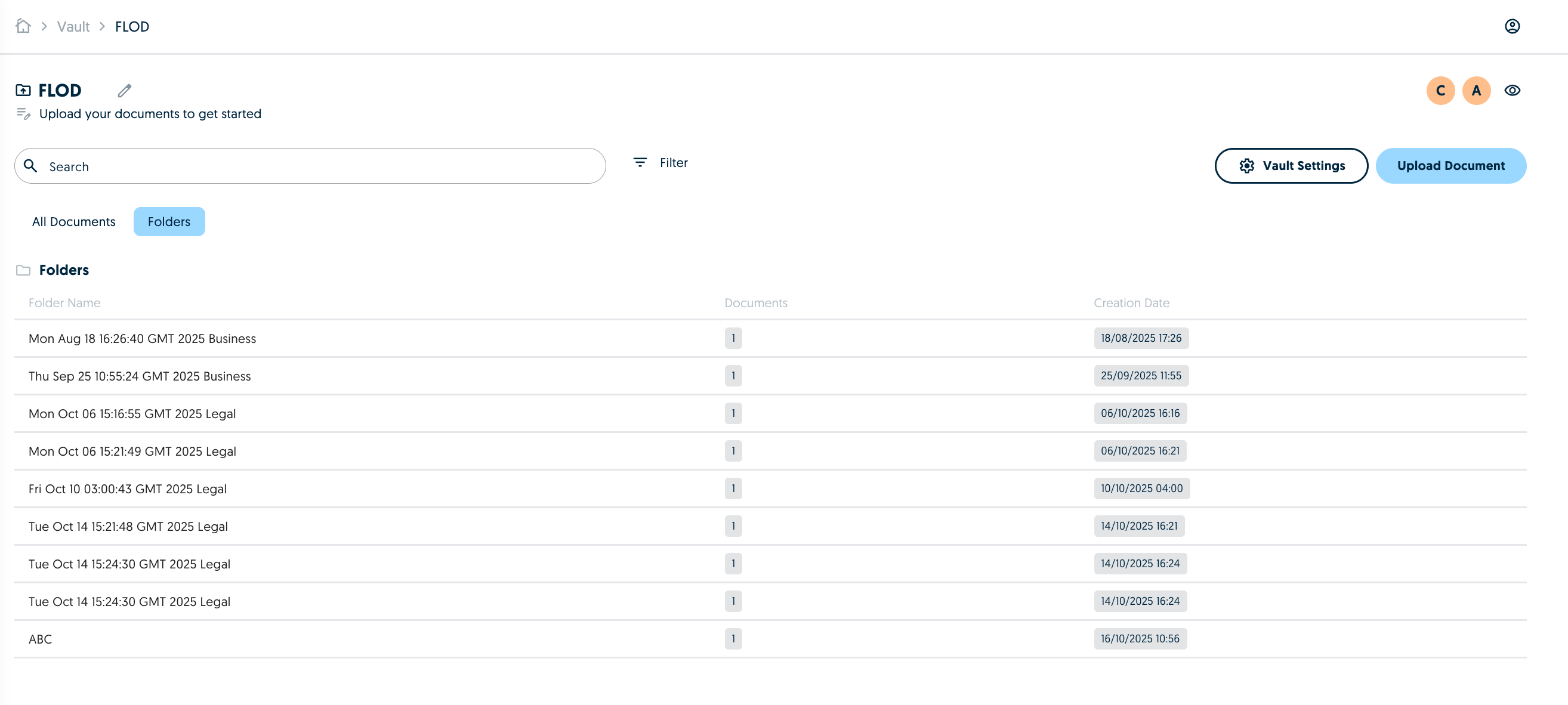
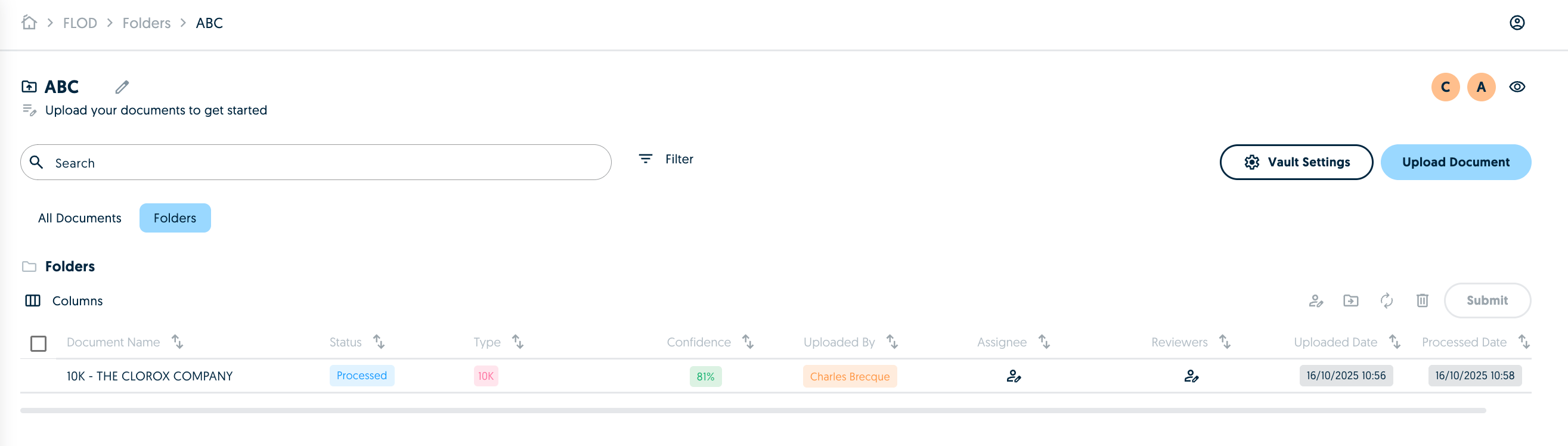
When importing documents into Vault, you can now organise them as folders. Select an existing folder or create a new one.After the documents have been imported into a folder, you can add the folder column to the view and filter the Vault by that folder.You can also move documents between folders by selecting them and clicking on the move to folder icon. You will then be prompted to confirm which folder you would like to send the documents to.You can view all the folders of the Vault under the Folders tab.You can then click on a folder to see all the documents inside that folder and you can edit the name of the folder if required.When you submit documents to Legislate, the folders will be carried through.