This page was imported from Intercom and may describe older navigation or terminology. Source: https://help.textmine.com/en/articles/9215771-editing-modes-in-scribe
Edit mode and Request mode
Editing mode allows you to make live edits to your Scribe templates whereas request mode allows you to track edits and make suggestions or requests. You can switch between the modes by clicking on the mode button between the publish and save buttons in the top left hand side of the ribbon.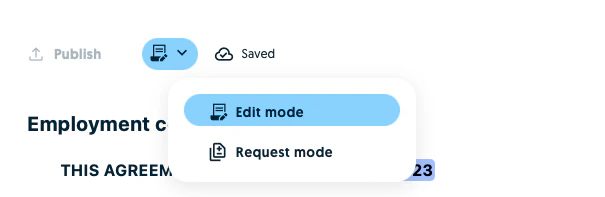

Comments
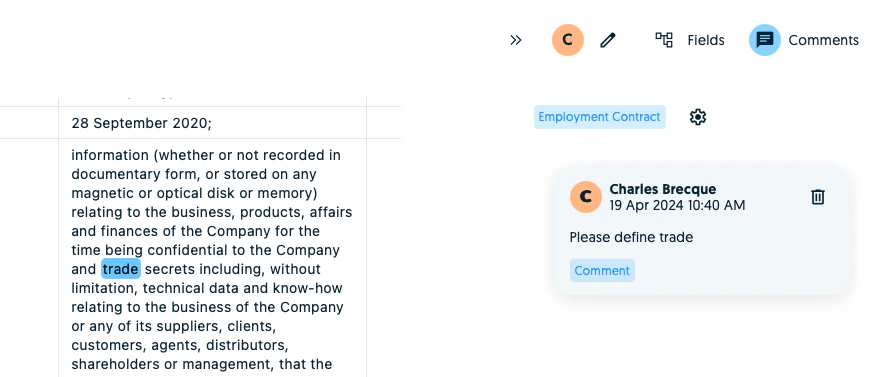
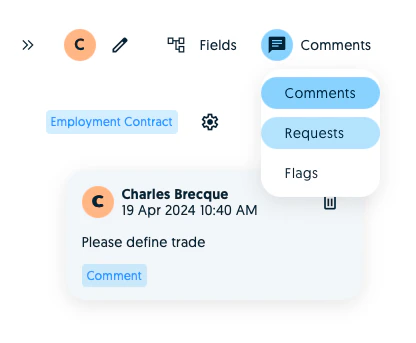
To leave a comment, simply highlight the portion of the text and the tool bar and enter your comment.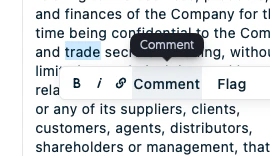
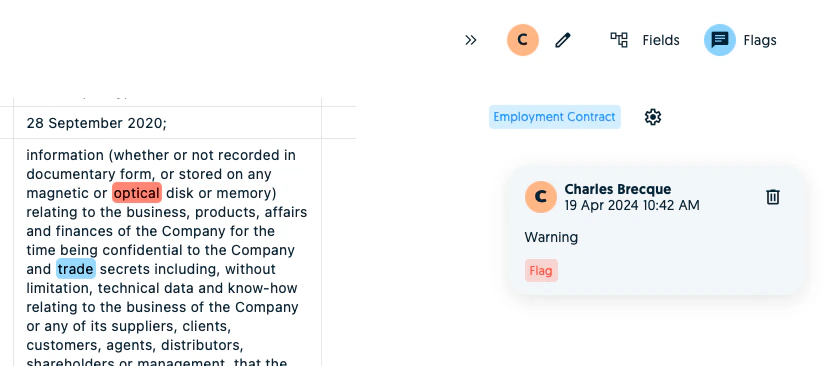
Flags
A flag allows you to escalate an aspect of the draft to the rest of your team. Select the text which needs to be flagged and select the flag item in the tool bar. Flags are then grouped under the flags tab.